📂 Filebrowser
The MOS Filebrowser provides a web-based file manager that allows you to browse, navigate, and inspect the entire file system of your MOS server directly from the WebUI. No SSH or FTP client required — file system access is available with a single click.
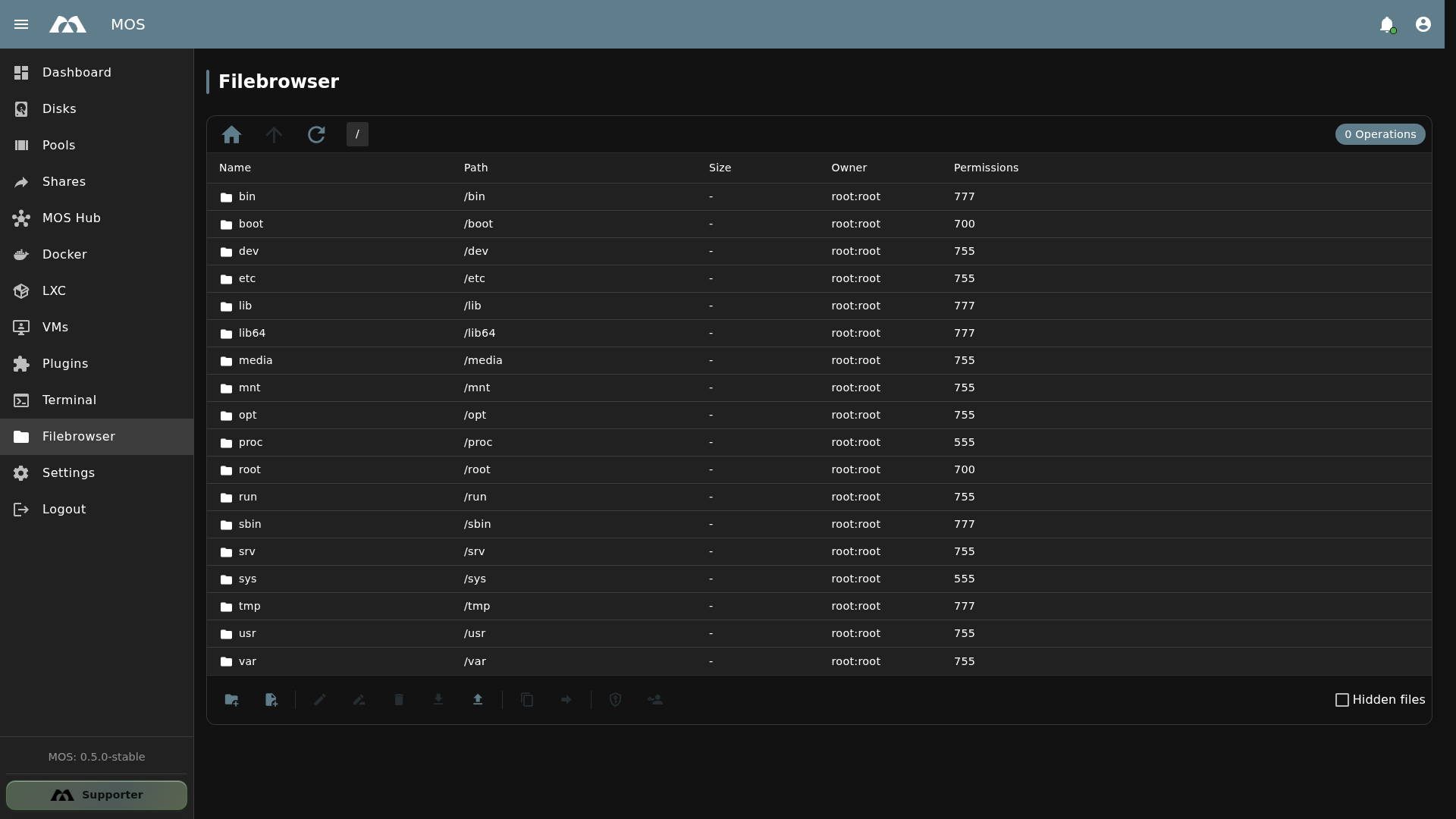
The Filebrowser showing the root directory (/).
📦 Accessing the Filebrowser
The Filebrowser is available from the MOS sidebar.
- Navigate to Filebrowser in the sidebar
- The file system browser opens automatically — no additional login required
- You start at the root directory (
/) - The current path is displayed in the breadcrumb at the top
The Filebrowser runs as the root user. You have full read access to the entire file system.
🗂️ Interface Overview
File List Table
The Filebrowser displays files and directories in a table with the following columns:
| Column | Description |
|---|---|
| Name | File or directory name |
| Path | Full absolute path (e.g., /etc, /mnt/main) |
| Size | File size (directories show -) |
| Owner | Owner and group (e.g., root:root) |
| Permissions | Numeric permissions (e.g., 755, 700, 555) |
Breadcrumb Navigation
The current directory path is displayed at the top of the file list. This shows you exactly where you are in the file system hierarchy.
Operations Counter
The "Operations" indicator shows the number of pending file operations (e.g., copy, move, delete). By default, it shows 0 Operations when idle.
Hidden Files
A Hidden files toggle is available at the bottom of the file list. Click it to show or hide dotfiles and hidden directories (files starting with .).
📁 Directory Navigation
Navigating into Directories
Click on any directory name in the table to navigate into it. The breadcrumb and file list update automatically.
Navigating to Common Paths
| Path | Description |
|---|---|
/ | Root directory — shows all top-level system directories |
/mnt | Mount points — contains storage pool mounts |
/mnt/main | Main storage pool — contains shares, appdata, VMs |
/boot | Boot partition — contains MOS system files, configurations |
/etc | System configuration files |
/var | Variable data — logs, caches, temporary files |
/root | Root user's home directory |
Typical MOS Directory Structure
/
├── mnt/
│   └── main/              ← Main storage pool
│       ├── appdata/        ← Docker application data
│       ├── media/          ← Media share
│       └── vms/            ← Virtual machine disks
├── boot/
│   └── config/             ← MOS configuration files
│       ├── system/         ← System settings (cron, hub, smart, etc.)
│       ├── docker/         ← Docker templates
│       └── notify/         ← Notification provider configs
├── etc/
│   └── libvirt/            ← VM definitions
└── var/
    └── log/                ← System logs
The most commonly used paths in MOS are /mnt/main (your storage pool) and /boot/config (your system configuration).
⚙️ Features
File Inspection
The Filebrowser allows you to quickly inspect files and directories:
- View permissions — Check who can read, write, or execute files
- Check ownership — See which user and group own each file
- Identify file sizes — See how much space files consume
- Browse system configs — Navigate to
/boot/config/to view MOS settings
Use Cases
| Use Case | Example Path |
|---|---|
| Check storage usage | Navigate to /mnt/main to see pool contents |
| Inspect Docker data | Navigate to /mnt/main/appdata to see container data |
| View MOS configs | Navigate to /boot/config/system/ for system settings |
| Check notification configs | Navigate to /boot/config/notify/providers/ |
| View VM definitions | Navigate to /etc/libvirt/ for VM configs |
| Browse system logs | Navigate to /var/log/ for log files |
| Verify share paths | Navigate to /mnt/main/ to confirm share directories |
⚠️ Important Notes
Read-Only Access
The Filebrowser is primarily designed for browsing and inspection. Be cautious when modifying system files — incorrect changes can destabilize your MOS installation.
- System configuration files in
/boot/config/can be edited, but changes may require a service restart - Never modify files in
/proc/or/sys/— these are virtual filesystems - Always back up before editing configuration files
System Directories
The following directories are critical system paths — do not modify their contents unless you know exactly what you are doing:
| Directory | Purpose | Risk |
|---|---|---|
/bin, /sbin | System binaries | 🔴 High — system may not boot |
/boot | Boot files & MOS config | 🔴 High — system may not boot |
/etc | System configuration | 🟡 Medium — services may fail |
/proc, /sys | Virtual filesystems | 🔴 High — kernel-level data |
/dev | Device files | 🔴 High — hardware access |
Alternatives
For file management tasks (upload, download, rename, delete), consider using:
- SSH + SFTP — Full file transfer capabilities (enable in Settings → Network → Network Services)
- SMB Share — Windows/macOS network file sharing (configure in Shares)
- Web Terminal — Command-line file operations (use
cp,mv,rm, etc.)
📚 Best Practices
- Use for inspection, not editing — The Filebrowser is ideal for quickly checking file paths, permissions, and sizes
- Navigate to
/mnt/mainfirst — This is where your user data, Docker appdata, and shares live - Check
/boot/configfor MOS settings — All MOS configurations are stored here persistently - Toggle hidden files — Enable "Hidden files" to see dotfiles and configuration files that are normally invisible
- Verify paths — Use the Path column to confirm exact file locations for scripts, cron jobs, or Docker volume mounts
✅ Summary
The MOS Filebrowser provides a convenient way to browse the file system directly from the WebUI.
Key points:
- Direct browser access — no SSH or FTP client needed
- Full root access — see all files and directories on the system
- Detailed file info — name, path, size, owner, and permissions
- Hidden files toggle — show or hide dotfiles
- Read-oriented — ideal for inspection and verification
- System-wide access — browse from
/to any directory on the server
The Filebrowser is perfect for quick file system inspection, verifying configurations, and navigating storage pools without leaving the MOS WebUI.
Parts of this documentation were created with the assistance of AI tools. All AI-generated content has undergone review, but it may still contain inaccuracies, omissions, or outdated information.