🗄️ Create a Storage Pool
Storage pools are the foundation of all data storage in MOS.
They define how disks are grouped, how data is protected, and which filesystems are used.
Pools are required for:
- Shares
- Docker storage
- LXC containers
- Virtual machines
- Media and backup data
If you want to use ZFS, please take a look at the following section: ZFS
Example:
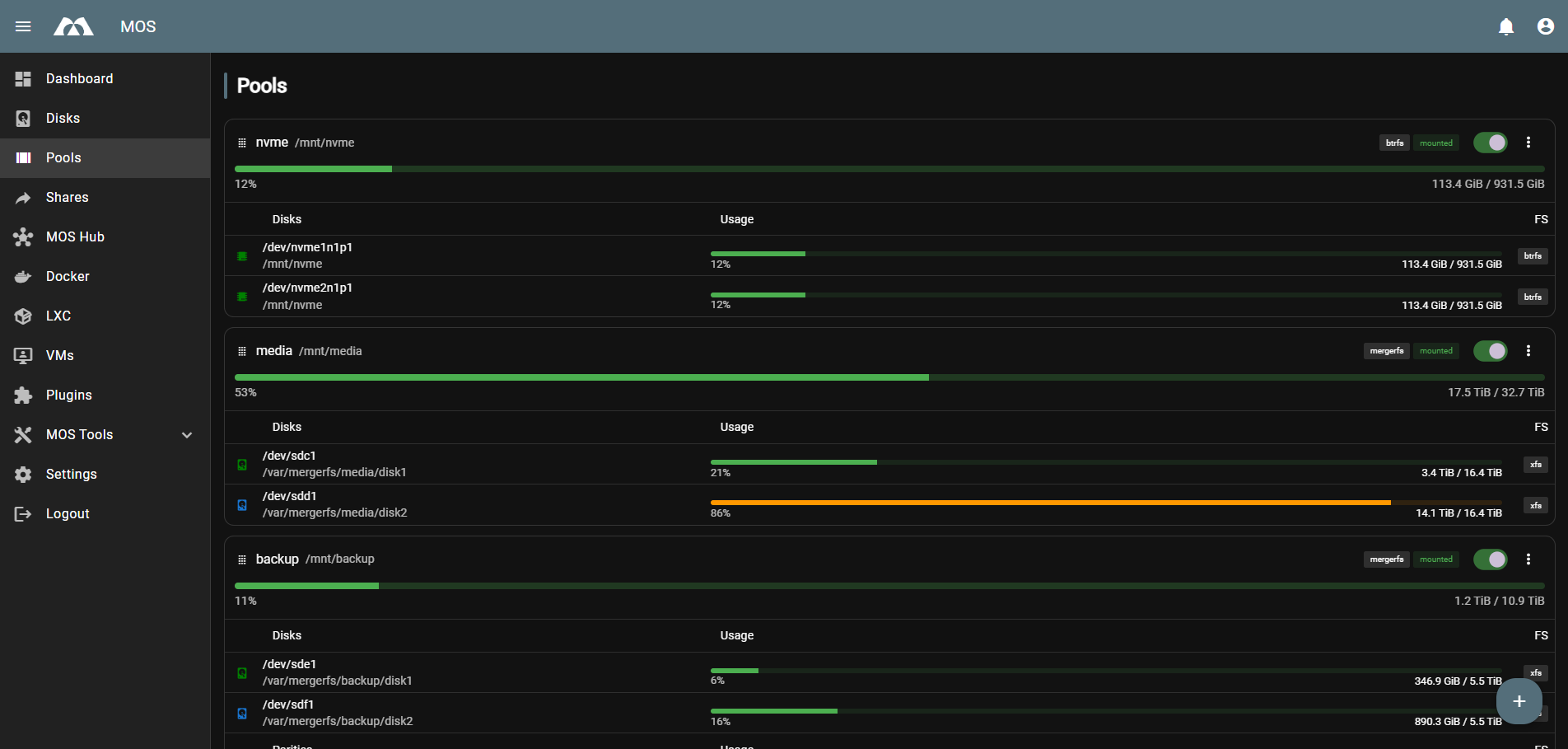
⚙️ Pool Configuration Fields
🏷️ Name
Defines the name of the storage pool.
Best practice:
- ✅ Use short, descriptive names
- ❌ Avoid spaces and special characters
Examples:
maindatamediabackup
🔄 Type
Defines how disks are organized within the pool.
Available pool types:
singlemultimergerfsnonraid(requires additional driver)
Each type serves a different use case and offers different levels of redundancy and flexibility.
🧩 Pool Types Explained
single
Uses a single disk without redundancy.
Characteristics:
- One disk per pool
- Maximum usable capacity
- No data protection
Use cases:
- Appdata
- Cache
- Downloads
- Media with external backups
If the disk fails, data is lost. Backups are mandatory.
multi
Uses multiple disks combined into a RAID-based pool.
Characteristics:
- Multiple disks
- Data protection depending on RAID level
- Managed as a single pool
Available RAID levels:
raid0raid1
📊 RAID Levels
raid0
Striping without redundancy
- Maximum performance and capacity
- No fault tolerance
Use case:
Temporary or non-critical data
raid1
Mirroring
- Data is mirrored across disks
- High data safety
- Reduced usable capacity
Use case:
Critical data, system pools, important shares
🧩 mergerfs
Creates a pooled filesystem using multiple independent disks combined via mergerfs, optionally protected by SnapRAID.
Characteristics:
- Disks remain independent
- Flexible expansion
- Parity handled separately via SnapRAID
Requirements:
- One or more data disks
- Optional SnapRAID parity disk
Use cases:
- Media storage
- Large data pools with mixed disk sizes
- Home server and NAS setups
Filesystem recommendation:
xfsfor data disks
Full Policy Reference
For a complete description of all available mergerfs policies, their behavior, and when to use each one, see the official mergerfs documentation:
👉 mergerfs – Policy Descriptions
nonraid
Uses multiple independent disks without traditional RAID. Each data disk keeps its own filesystem and is mounted individually, while optional parity disks provide fault protection.
Characteristics:
- Each data disk has its own filesystem
- Optional parity disks for fault tolerance
- Flexible and simple disk management
- Disks can be added or replaced individually
The nonraid driver is not installed by default. It must be installed as a plugin via the MOS Hub. After installing the driver you have to reboot. For installation instructions, refer to the MOS Hub documentation.
To install the driver:
- Open MOS Hub
- Search for NonRAID Driver
- Select the desired release
- Click Install
- Reboot the server
Only one nonraid pool can be created per MOS system.
🔐 Parity Setup (Optional)
Parity disks allow MOS to rebuild the data of failed data disks. Using parity is optional — you can run a nonraid pool with data disks only (no redundancy) or add up to two parity disks for one- or two-fault tolerance.
Important rules:
- Maximum 2 parity disks per pool
- Maximum 28 data disks per pool
- Each parity disk must be at least as large as the biggest data disk in the pool
- Parity disks do not provide usable storage space — they only store parity information
- For full protection of all data disks, every parity disk has to be at least as large as the largest data disk in the pool
- 1 parity disk → protects against a single data disk failure
- 2 parity disks → protects against up to two simultaneous data disk failures
Step-by-step: Create a nonraid pool with parity
- Navigate to Pools and open the pool creation dialog
- Enter a descriptive Name (e.g.
media) - Set the pool Type to
nonraid - Devices — select all data disks that should store your actual data (up to 28)
- Parity — select the disk(s) that should hold the parity data (optional, leave empty for no redundancy; up to 2 disks)
warning
Every selected parity disk must be at least as large as the biggest selected data disk. Otherwise the parity protection does not cover the full capacity of all data disks.
- Filesystem — choose the filesystem for the pool:
ext4xfs(recommended)btrfs
- Minimal Free Space — set the minimum free space threshold for the pool (this controls when MOS stops writing to a single disk and moves on to the next one)
- Configure the following options by ticking the checkboxes as needed:
- Move on No Space — automatically moves data to the next available disk when a disk runs out of space
- Automount — ✅ Recommended; mounts the pool automatically on system startup
- Format — formats the selected disks during pool creation
warning
Enabling Format permanently deletes all existing data on the selected disks. Make sure the disks are empty or backed up before continuing.
- Shared — makes the pool available as a shared pool
- Encrypt — enables disk encryption for the pool
warning
Encryption keys must be stored securely. Losing the key means losing access to the data permanently.
- Click Create to create the pool
After creation, MOS automatically starts the initial parity sync (resync). The pool is mounted and usable immediately, but full protection is only available once the resync has completed.
During the initial resync the parity disks are being populated with parity information. You can use the pool normally while the resync runs in the background, but a data disk failure before the resync completes cannot be recovered from parity.
➕ Adding and Replacing Disks
Disks can be added or replaced at any time without recreating the pool.
The limits still apply after creation: max. 28 data disks and max. 2 parity disks per pool.
Add a data disk:
- Open the pool in Pools
- Add the new disk under Devices
- MOS automatically triggers a parity update afterwards
Replace a failed data disk:
- Open the pool in Pools
- Remove the failed disk from Devices
- Add the replacement disk to the same slot in Devices
- MOS starts a resync (
RECON_DISK) and rebuilds the data from parity
A data disk rebuild from parity is only possible while enough parity disks and all other required data disks are still intact. The replacement disk must be at least as large as the original disk.
Replace a parity disk:
- Open the pool in Pools
- Remove the old disk from the Parity field
- Add the new disk to the Parity field
- MOS starts a full resync to populate the new parity disk
🛡️ Parity Maintenance
MOS provides parity operations for nonraid pools, accessible via the pool's action menu (•••):
| Operation | Description |
|---|---|
| Check | Verifies that parity matches the current data. No changes are made to the data disks |
| Correct | Verifies parity and rewrites the parity disk(s) to fix any detected mismatches |
| Cancel | Cancels a currently running parity operation |
Run a periodic parity Check (e.g. monthly) to detect mismatches early. If mismatches are found, run Correct to update the parity disks accordingly.
Use cases:
- Simple parity-based storage
- Easy disk replacement
- Mixed disk sizes with redundancy
- Home server and NAS setups
🖥️ Devices
Select the physical disks that will be assigned to the pool.
- Selected disks may be formatted
- Existing data can be lost if formatting is enabled
Always verify disk selection carefully.
📦 Filesystem
Defines the filesystem used by the pool.
Available options:
xfsext4btrfsvfat
Filesystem Recommendations
- xfs – Recommended default for most pools
- ext4 – Simple and compatible, but less scalable
- btrfs – Required for advanced features like snapshots
- vfat – Only for removable or temporary storage
If you want to use ZFS, please take a look at the following section: ZFS
🛠️ Advanced Options
🔄 Automount
Automatically mounts the pool during system startup.
✅ Recommended: Enabled
🗑️ Format
Formats the selected disks during pool creation.
Enabling this option will permanently delete all data on the selected disks.
🔐 Encrypt
Enables disk encryption for the pool.
- Increases data security
- Slight performance overhead
- Encryption key must be stored securely
🔍 Skip Size check (Mergerfs + SnapRAID only)
Warning: This option requires 5 clicks to enable. This is intentional to ensure you understand the implications.
When enabled, MOS will skip the size validation check when creating a Mergerfs pool with SnapRAID. This allows you to use disks with different sizes, but may lead to unexpected behavior if not configured correctly.
- Only available for Mergerfs pools with SnapRAID
- Not available for nonraid pools
- Requires 5 clicks to enable (intentional safety measure)
- May cause issues if disks have significantly different sizes
- Use only if you understand the risks
⚠️ Usage Warning
Note: The translation for this feature is not yet finalized in the current MOS 0.4.8-beta release. The UI labels may still be in German and will be updated in a future release.
The Usage Warning feature allows you to receive notifications when a storage pool reaches certain capacity thresholds. This helps you proactively manage storage space and avoid unexpected issues.
How It Works
- The system checks pool usage every 10 minutes
- When the pool reaches your configured threshold, you will receive a warning or alarm notification
- Two threshold levels are available: Warning and Alarm
Configuration
To configure Usage Warning for a pool:
- Navigate to Pools
- Select the pool you want to monitor
- Click the three dots (•••) menu
- Select Usage Warning
- Configure the thresholds:
- Warning: Percentage threshold for warning notifications
- Alarm: Percentage threshold for alarm notifications

Location of the Usage Warning option in the pool menu

Usage Warning configuration dialog
Threshold Recommendations
- Warning (70%): Receive a warning when the pool reaches this level
- Alarm (90%): Receive an alarm when the pool reaches this critical level
Best Practices
- Set Warning at a level that gives you enough time to respond (e.g., 70%)
- Set Alarm at a critical level that requires immediate action (e.g., 90%)
- Consider your storage growth rate when setting thresholds
- Monitor notifications and take action before reaching the Alarm level
🔄 Pool Actions
Each pool in the Pools list has an action menu (•••) with the following options:
| Action | Description |
|---|---|
| Unmount Pool | Unmounts the pool without deleting it. The pool data remains intact and can be remounted later |
| Delete pool | Permanently removes the pool and its configuration. Data on the disks is NOT deleted |
| Spin Up Pool | Wakes up all disks in the pool from sleep/standby mode |
| Spin Down Pool | Puts all disks in the pool into sleep/standby mode to save power and reduce noise |
| Usage Alerts | Configure warning and alarm thresholds for pool capacity (see Usage Warning) |
Use Spin Down Pool for pools that are not frequently accessed (e.g., backup pools) to reduce power consumption and disk wear. Use Spin Up Pool before accessing the pool to wake the disks.
Spinning down disks frequently can reduce their lifespan. Only use spin down for pools that are accessed infrequently (e.g., once per day or less).
🧹 Btrfs Operations & Schedules
When a pool is formatted with btrfs, MOS provides additional maintenance operations that help keep the filesystem healthy and performant.
These operations are only available for btrfs pools and can be scheduled to run automatically.
Where to Find
The Btrfs operations and schedules are accessible from the pool list:
- Navigate to Pools
- Click the three dots (•••) menu on a btrfs pool
- Select Btrfs Operations or Btrfs Schedules

Accessing the Btrfs options from the pool menu
📋 Btrfs Operations
The Btrfs Operations dialog shows the available maintenance tasks for the selected pool.
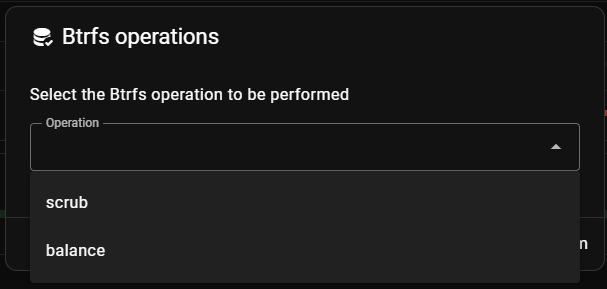
Btrfs Operations dialog
🔍 Scrub
A scrub reads all data and metadata on a btrfs filesystem and verifies it against known checksums.
If corrupted data is found and a valid mirrored or RAID copy exists, btrfs can automatically repair the affected blocks.
What it does:
- Detects silent data corruption (bit rot)
- Repairs corrupted blocks when redundant copies are available
- Reports errors that cannot be repaired automatically
Advantages:
- ✅ Ensures long-term data integrity
- ✅ Can repair corruption automatically on mirrored/RAID1 pools
- ✅ Runs online without unmounting the pool
Disadvantages:
- ❌ Causes additional disk I/O during the scrub
- ❌ On single-disk pools without redundancy, corruption can only be detected but not repaired
Scrub is especially valuable on multi + raid1 btrfs pools, where corrupted data can be repaired automatically from the mirror.
⚖️ Balance
A balance reorganizes data across the disks in a btrfs pool.
It redistributes data chunks to reclaim unused space, reduce fragmentation, and enforce RAID profiles evenly across all devices.
A balance is only available for multi-device pools (at least 2 disks). On single-disk btrfs pools, the balance operation is not available because there are no additional devices to redistribute data across.
What it does:
- Reclaims allocated but unused space
- Reduces file fragmentation
- Redistributes data evenly across all disks in multi-device pools
Advantages:
- ✅ Can free up space that is allocated but not actually used
- ✅ Improves read performance by reducing fragmentation
- ✅ Keeps data evenly distributed across disks
Disadvantages:
- ❌ Causes significant disk I/O and can take a long time on large pools
- ❌ Temporarily increases wear on the disks
- ❌ Running it too frequently offers little benefit while adding unnecessary load
📅 Schedules
Both Scrub and Balance can be enabled as scheduled tasks in MOS.
When enabled, MOS will run the selected operation automatically at the configured interval.

Btrfs Schedules overview
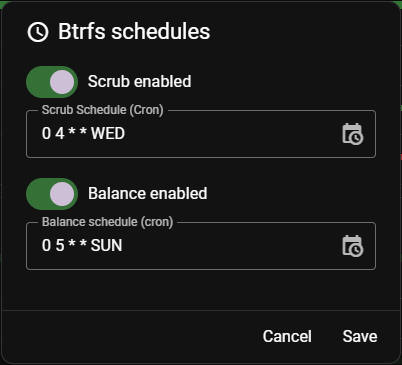
Btrfs Schedules configuration options
Should you enable schedules?
| Operation | Schedule recommended? | Reason |
|---|---|---|
| Scrub | ✅ Yes | Regularly verifies data integrity and repairs silent corruption early |
| Balance | ⚠️ Optional | Only needed when space allocation issues or fragmentation occur; not required on a regular basis |
Best practices:
- ✅ Enable a regular Scrub schedule (e.g., monthly) to detect and repair corruption early
- ⚠️ Only enable a Balance schedule if you experience unallocated space issues or high fragmentation
- 🕒 Schedule maintenance during low-activity periods (e.g., nightly) to minimize impact on performance
- 📊 Monitor the results of each run in the MOS task history
A balance operation can generate heavy I/O load. Avoid running it during peak usage hours or on pools with active workloads.
✅ Summary
Choosing the correct pool type and filesystem is essential for a stable and reliable system.
Quick recommendations:
single + xfs→ Appdata, cache, downloadsmulti + raid1→ Critical datamergerfs + SnapRAID→ Media storagemergerfs + nonraid→ Flexible parity-based storage (driver required)
Plan your pool layout carefully before creating pools.
Parts of this documentation were created with the assistance of AI tools. All AI-generated content has undergone review, but it may still contain inaccuracies, omissions, or outdated information.