🔌 USB Devices
The USB Devices page displays all USB devices currently connected to the MOS system. This includes internal USB hubs, external devices, and onboard controllers. The information is useful for hardware identification, troubleshooting, and verifying connected peripherals.
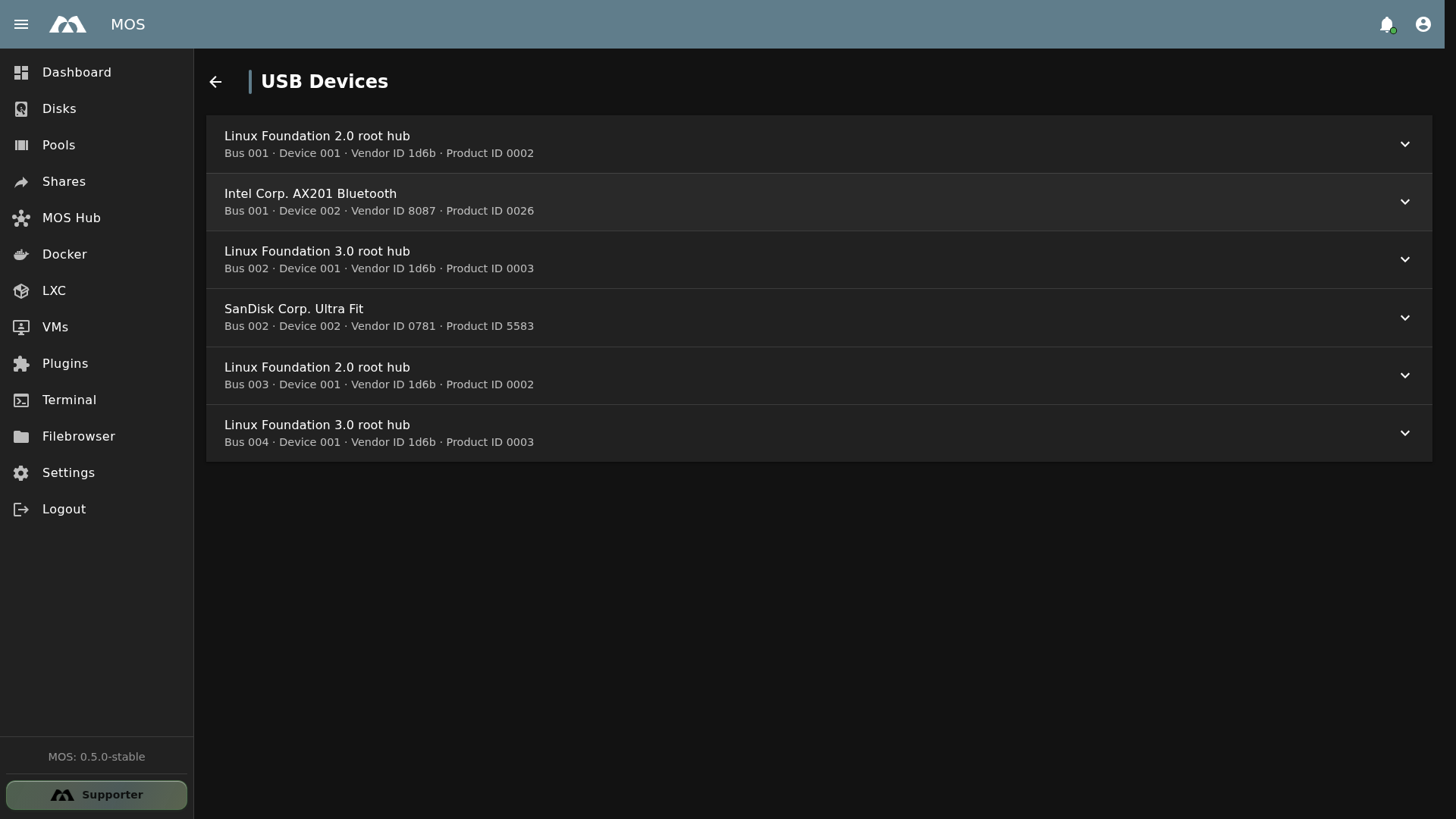
The USB Devices page showing connected USB devices.
📦 Accessing USB Devices
The USB Devices page is available under the Hardware section in Settings.
- Navigate to Settings in the sidebar
- Go to Hardware → USB Devices
The USB Devices page is read-only. It displays detected devices automatically — no configuration is required.
🗂️ Device Information
Each USB device entry displays the following information:
| Field | Description |
|---|---|
| Device Name | Manufacturer and product name (e.g., SanDisk Corp. Ultra Fit) |
| Bus | USB bus number the device is connected to (e.g., Bus 001) |
| Device | Device number on the bus (e.g., Device 002) |
| Vendor ID | USB vendor identifier (e.g., 1d6b = Linux Foundation) |
| Product ID | USB product identifier (e.g., 0002) |
📋 Common USB Devices
| Device Type | Example | Typical Vendor ID |
|---|---|---|
| USB Root Hub | Linux Foundation 2.0/3.0 root hub | 1d6b |
| USB Storage | SanDisk Ultra Fit, USB flash drives | 0781 (SanDisk) |
| Bluetooth | Intel AX201 Bluetooth | 8087 (Intel) |
| Keyboard/Mouse | Logitech, Razer peripherals | varies |
| UPS | APC, CyberPower via USB | varies |
| Tuners | TV tuners, DVB adapters | varies |
⚡ Use Cases
- Identify connected hardware — Verify that USB devices are detected by the system
- Troubleshoot USB issues — Check if a device appears in the list when plugged in
- Find Vendor/Product IDs — Useful for configuring device passthrough to VMs or LXC containers
- Monitor USB storage — Confirm USB drives are properly recognized before mounting
- Verify UPS connection — Ensure NUT (Network UPS Tools) can detect the UPS device
📚 Best Practices
- Check after connecting new hardware — If a USB device isn't working, verify it appears in this list
- Note Vendor/Product IDs — These are needed for Docker device passthrough (
--device=/dev/bus/usb/001/002) or LXC configuration - USB hubs are normal —
Linux Foundation root hubentries are internal controllers, not physical devices - Use for NUT setup — When configuring a UPS, check that it appears here with the correct Vendor ID
Need to pass a USB device to a Docker container? Use the Bus and Device number to construct the device path: /dev/bus/usb/<BUS>/<DEVICE>. For example, a device on Bus 002, Device 002 would be /dev/bus/usb/002/002.
✅ Summary
The USB Devices page provides a quick overview of all connected USB hardware.
Key points:
- Automatic detection — all USB devices are listed without configuration
- Detailed identification — vendor IDs, product IDs, bus and device numbers
- Read-only — for inspection and troubleshooting only
- Useful for passthrough — Vendor/Product IDs needed for VM and container device assignment
Parts of this documentation were created with the assistance of AI tools. All AI-generated content has undergone review, but it may still contain inaccuracies, omissions, or outdated information.