🗜️ ZRAM
ZRAM is a Linux kernel module that creates a compressed block device in RAM. It can be used as compressed swap space (reducing disk I/O and increasing effective memory) or as a fast RAM disk for temporary files. MOS provides a built-in ZRAM configuration interface with support for multiple devices, compression algorithms, and filesystems.
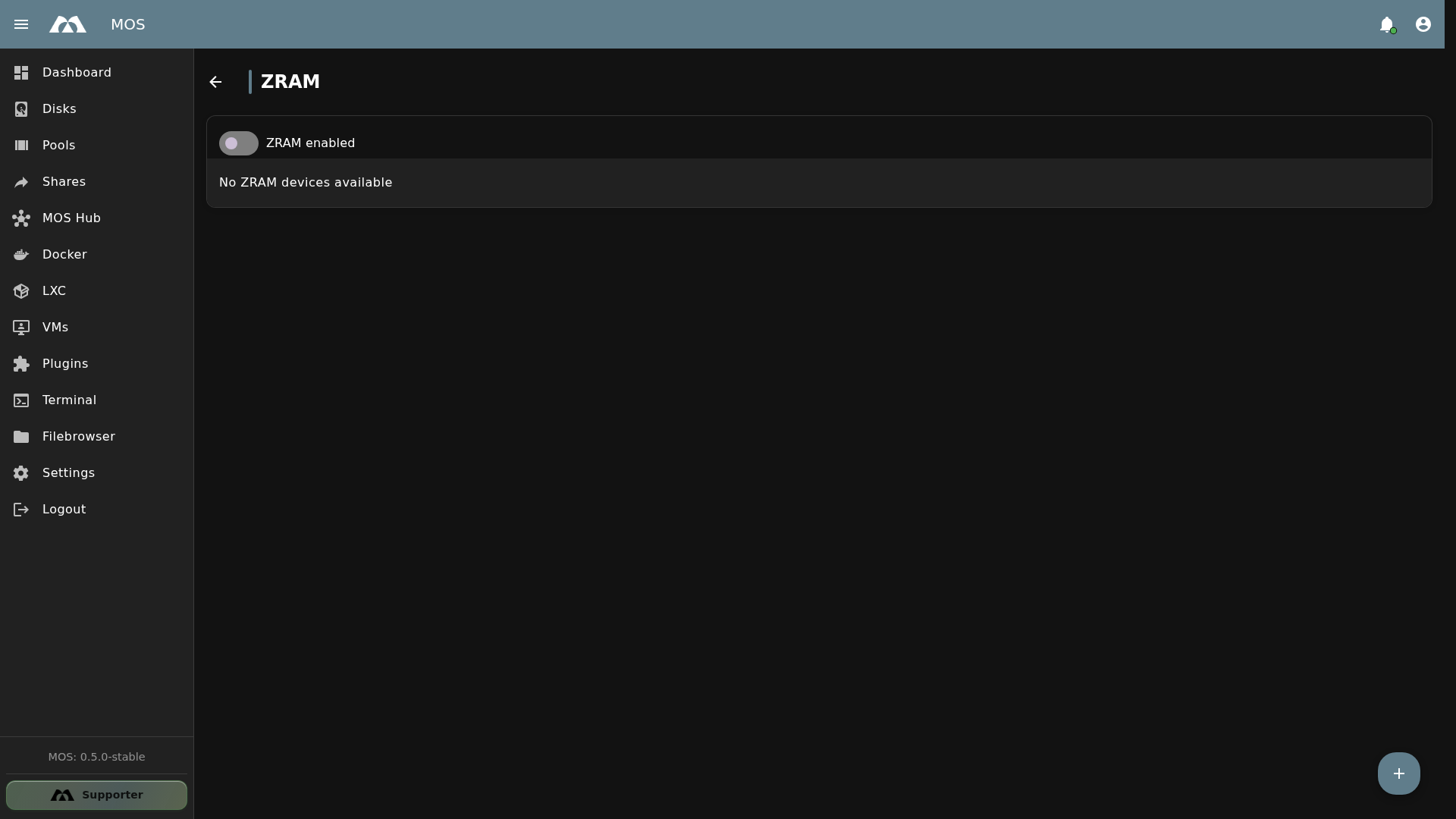
The ZRAM configuration page.
📦 Accessing ZRAM
The ZRAM settings are available under the Hardware section in Settings.
- Navigate to Settings in the sidebar
- Go to Hardware → ZRAM
⚙️ ZRAM Overview
ZRAM Enabled
Toggles the global ZRAM service on or off.
When enabled:
- ZRAM devices can be created and managed
- The ZRAM kernel module is loaded
- Devices appear in the ZRAM device list
When disabled:
- No ZRAM devices are active
- The ZRAM kernel module is unloaded
Device List
The page displays a list of active ZRAM devices. If no devices are configured, the message No ZRAM devices available is shown.
➕ Creating a ZRAM Device
Click the + (floating action button) in the bottom-right corner to open the Create ZRAM device dialog.
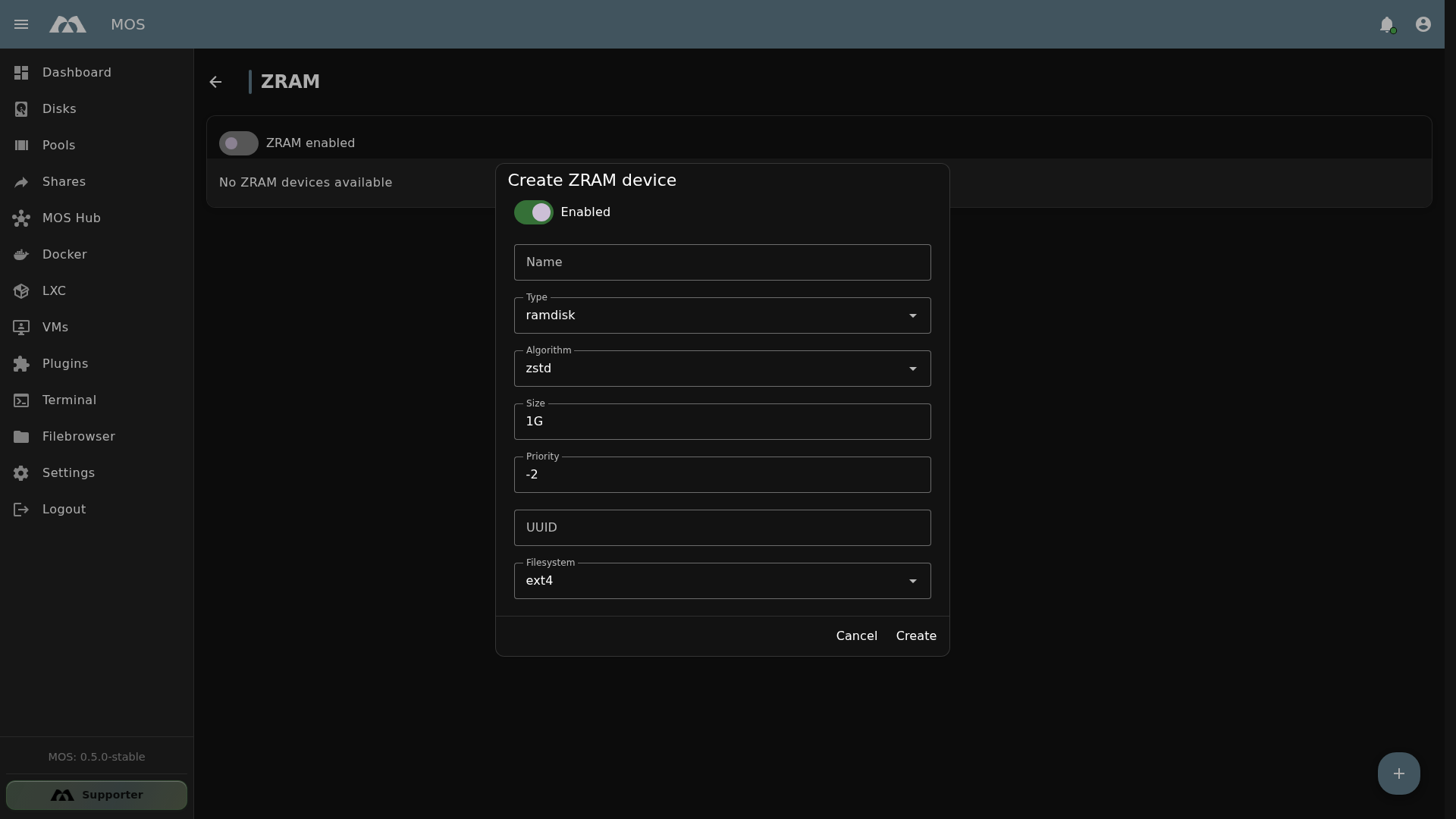
The Create ZRAM device dialog with default values.
Configuration Fields
| Field | Type | Default | Description |
|---|---|---|---|
| Enabled | Toggle | On | Enables or disables this specific ZRAM device |
| Name | Text | ramdisk | Name of the ZRAM device (e.g., zram0, swap0) |
| Type | Dropdown | ramdisk | How the ZRAM device is used — see Type Options |
| Algorithm | Dropdown | zstd | Compression algorithm — see Algorithm Options |
| Size | Text | — | Maximum uncompressed size of the device (e.g., 4G, 512M) |
| Priority | Number | — | Swap priority (higher = used first). Only relevant for swap type |
| UUID | Text | Auto-generated | Unique identifier for the device (auto-generated, can be left as-is) |
| Filesystem | Dropdown | ext4 | Filesystem for ramdisk type — see Filesystem Options |
Type Options
| Type | Description |
|---|---|
swap | Uses the ZRAM device as compressed swap space. Memory pages are compressed and stored in RAM instead of being written to disk. Faster than disk swap, reduces SSD wear. |
ramdisk | Uses the ZRAM device as a compressed RAM disk. Formatted with a filesystem (ext4, xfs, or btrfs) and mounted as a regular directory. Ideal for /tmp or cache storage. |
Use swap type to increase effective memory capacity. Use ramdisk type for fast, compressed temporary storage.
Algorithm Options
The compression algorithm determines how memory pages are compressed. The choice affects compression ratio, speed, and CPU usage.
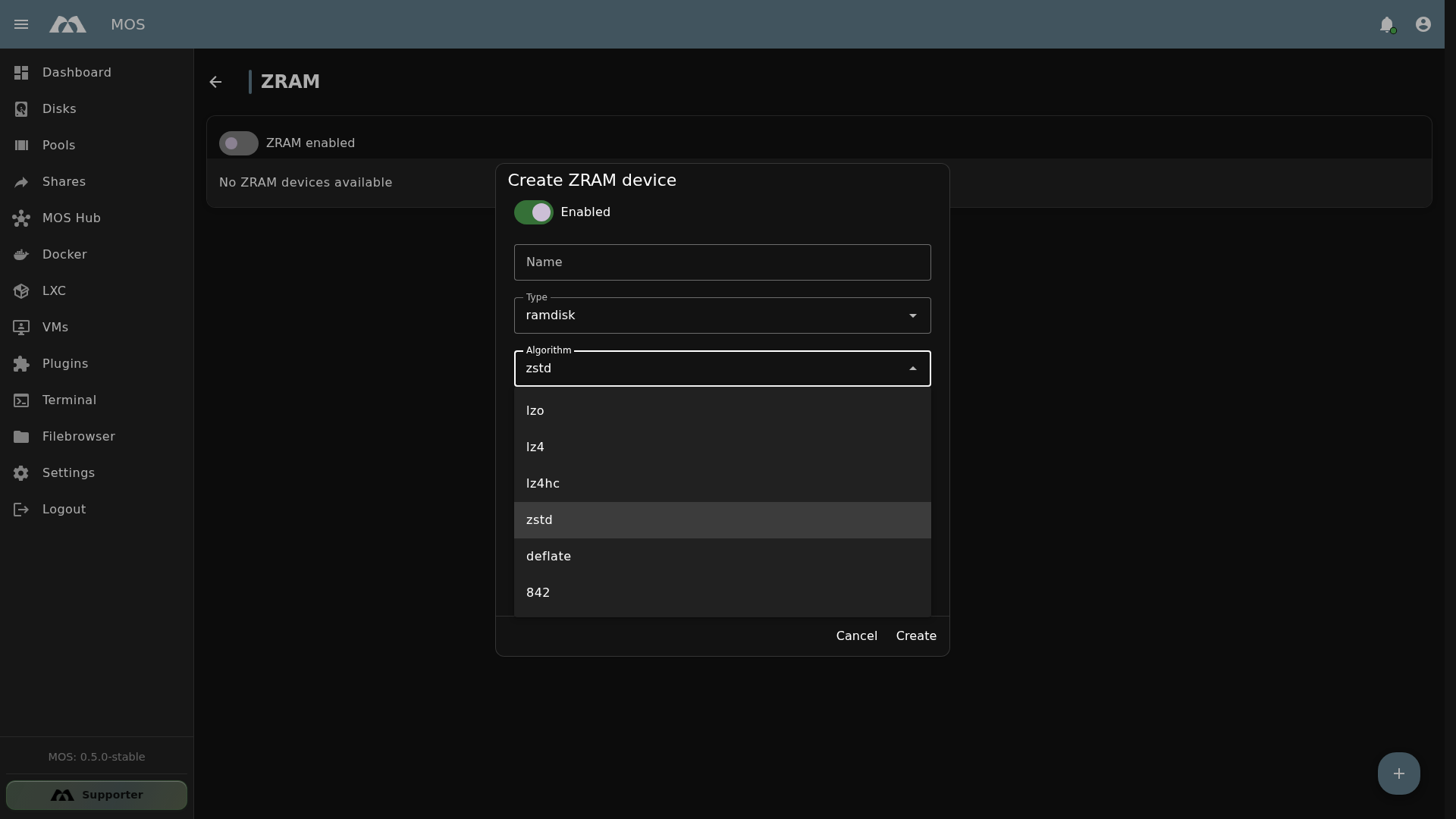
Available compression algorithms in the Create ZRAM device dialog.
| Algorithm | Compression Ratio | Speed | CPU Usage | Recommended |
|---|---|---|---|---|
zstd | High (best) | Fast | Low | ✅ Default — best overall balance |
lz4 | Medium | Very fast | Very low | ⚡ For speed-critical workloads |
lz4hc | Medium-High | Medium | Medium | For better ratio with decent speed |
lzo | Low-Medium | Fast | Low | Legacy, use lz4 instead |
deflate | Medium | Slow | High | Legacy (zlib), not recommended |
842 | Medium | Hardware-dependent | Low (with NX) | IBM POWER systems only |
zstd (Zstandard) is the recommended default — it offers an excellent compression ratio (typically 1:3) with very fast compression and decompression speeds.
Filesystem Options
Only relevant when Type is set to ramdisk. Determines the filesystem used to format the ZRAM block device.
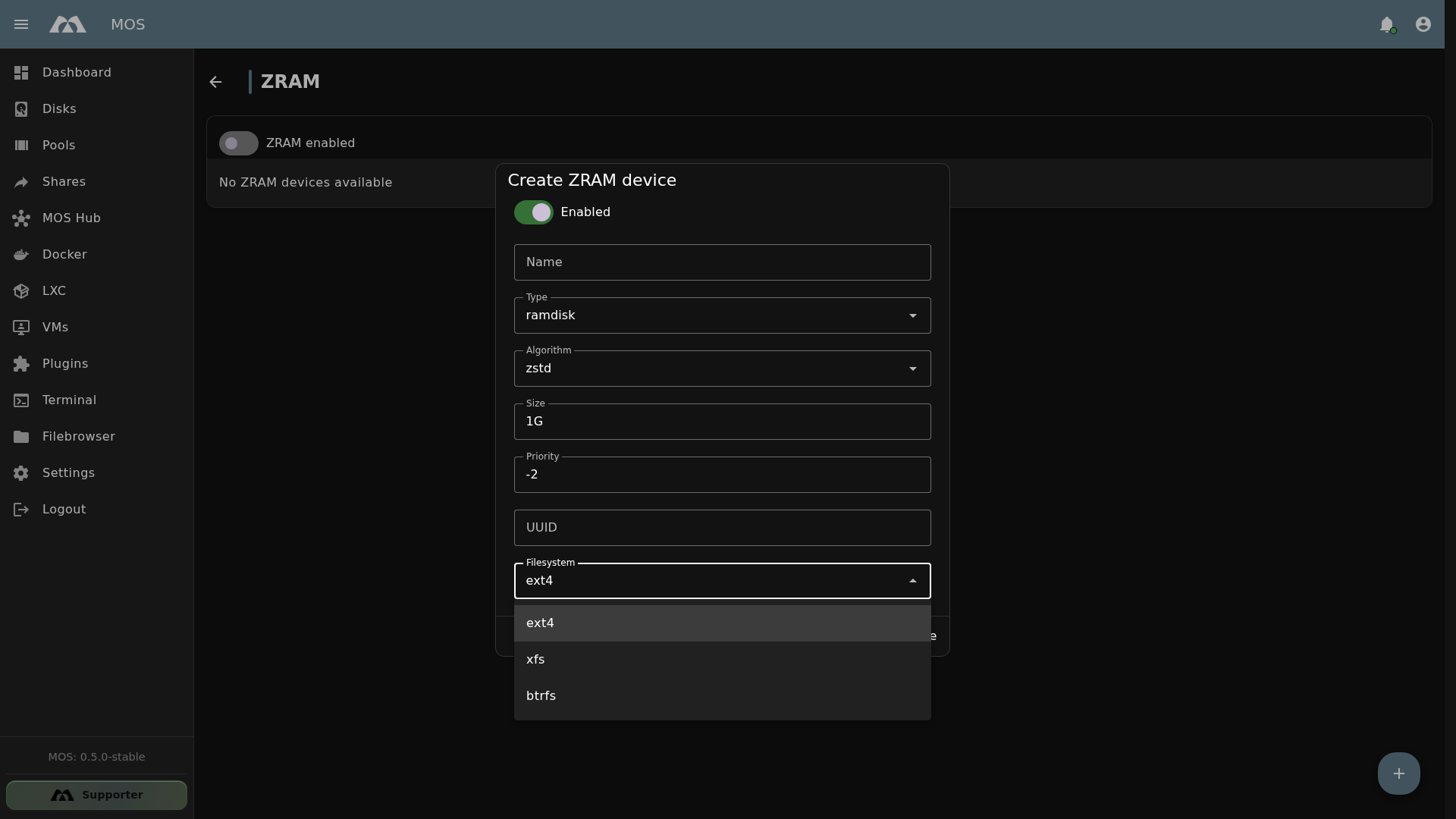
Available filesystem options for ramdisk type.
| Filesystem | Description |
|---|---|
ext4 | Default. Reliable, widely supported, journaling filesystem. Good for most use cases. |
xfs | High-performance filesystem, good for large files and high throughput. |
btrfs | Copy-on-write filesystem with snapshots, compression, and checksums. More overhead but more features. |
The filesystem option is only available for ramdisk type. When Type is swap, the device is formatted as swap space and no filesystem is needed.
🧠 How ZRAM Works
Swap Mode (swap type)
- Memory pressure — When the system runs low on RAM, the kernel moves inactive memory pages to swap
- Compression — Instead of writing to disk, pages are compressed and stored in the ZRAM device (in RAM)
- Decompression — When a page is needed again, it is decompressed back into active memory
This means swapped pages stay in RAM — just in compressed form. No disk I/O is needed, making it much faster than conventional swap.
RAM Disk Mode (ramdisk type)
- Device creation — A compressed block device is created in RAM
- Formatting — The device is formatted with the selected filesystem (ext4, xfs, btrfs)
- Mounting — The device can be mounted as a regular directory (e.g.,
/tmp) - Usage — Files written to the mount point are compressed transparently
Compression Ratio
With modern compression algorithms (e.g., zstd), typical compression ratios are around 1:3:
| Physical RAM Used | Effective Storage (3:1 ratio) |
|---|---|
| 512 MB | ~1.5 GB |
| 1 GB | ~3 GB |
| 4 GB | ~12 GB |
| 8 GB | ~24 GB |
The actual compression ratio depends on the type of data. Text and code compress well; already-compressed data (images, videos) does not.
⚡ When to Use ZRAM
| Scenario | Type | Recommended? | Why |
|---|---|---|---|
| Limited RAM (≤ 8 GB) | swap | ✅ Yes | Maximizes available memory for containers and services |
| Many Docker containers | swap | ✅ Yes | Container idle memory compresses well |
| No disk swap available | swap | ✅ Yes | Provides swap without requiring disk space |
| SSD wear reduction | swap | ✅ Yes | Reduces swap writes to disk |
| Fast /tmp storage | ramdisk | ✅ Yes | Compressed RAM disk is faster than SSD |
| Cache/temp files | ramdisk | ✅ Yes | Compresses cache data, saving RAM |
| Hibernation needed | — | ❌ No | Hibernation to ZRAM swap is not supported |
| Abundant RAM (≥ 32 GB) | swap | ⚠️ Optional | Less impact, but still reduces disk I/O |
📊 Monitoring ZRAM
You can check ZRAM statistics from the MOS Web Terminal:
Check if ZRAM is active
zramctl
Example output:
NAME       ALGORITHM DISKSIZE  DATA  COMPR  TOTAL STREAMS MOUNTPOINT
/dev/zram0 zstd        4G      512M  148M   156M       4 [SWAP]
Check swap usage
swapon --show
Check compression ratio
zramctl --raw
The DATA column shows uncompressed size, while COMPR shows the actual compressed size. The ratio between them is your compression efficiency.
⚠️ Important Notes
ZRAM uses RAM for compressed data. If you configure a very large ZRAM device, the compressed data can still consume significant physical RAM. Start with a conservative size (e.g., half of total RAM) and adjust based on your workload.
- No hibernation — Hibernation to ZRAM swap is not supported by the Linux kernel
- No persistence — ZRAM data is lost on reboot (expected behavior for swap and RAM disks)
- CPU overhead — Compression and decompression use CPU cycles. On very slow CPUs, the trade-off may not be worth it
- Size is uncompressed — The
Sizefield sets the maximum uncompressed size, not the compressed size. The actual RAM usage will be smaller due to compression
📚 Best Practices
- Start with half your RAM — A ZRAM swap device size of 50% of total RAM is a good starting point
- Use zstd compression — It offers the best balance of compression ratio and speed
- Set swap priority — Give ZRAM swap a higher priority than disk swap so it's used first
- Use ramdisk for /tmp — A ZRAM ramdisk mounted at
/tmpreduces SSD wear from temporary files - Monitor usage — Check
zramctlperiodically to see compression ratio and usage - Test under load — Enable ZRAM and monitor system performance under your typical workload before relying on it in production
✅ Summary
ZRAM provides compressed swap and RAM disk capabilities, allowing your MOS system to make more efficient use of available memory.
Key points:
- Two types —
swap(compressed swap in RAM) andramdisk(compressed RAM disk) - Six compression algorithms —
zstd(default),lz4,lz4hc,lzo,deflate,842 - Three filesystems —
ext4(default),xfs,btrfs(ramdisk only) - Toggle on/off — simple enable/disable per device from the WebUI
- Ideal for limited RAM — great for servers running many containers
- Monitor with
zramctl— check compression ratio and usage from the terminal - No hibernation support — ZRAM swap is volatile by design
ZRAM is an excellent memory optimization for homelab servers and systems running Docker, LXC, and VMs with limited physical RAM.
Parts of this documentation were created with the assistance of AI tools. All AI-generated content has undergone review, but it may still contain inaccuracies, omissions, or outdated information.