⚙️ System
The System menu provides core configuration options that control system identity, localization, power behavior, notifications, time synchronization, and network proxy settings.
The System menu is located under:
Settings → System Configuration → System
These settings affect global system behavior and should be configured carefully.
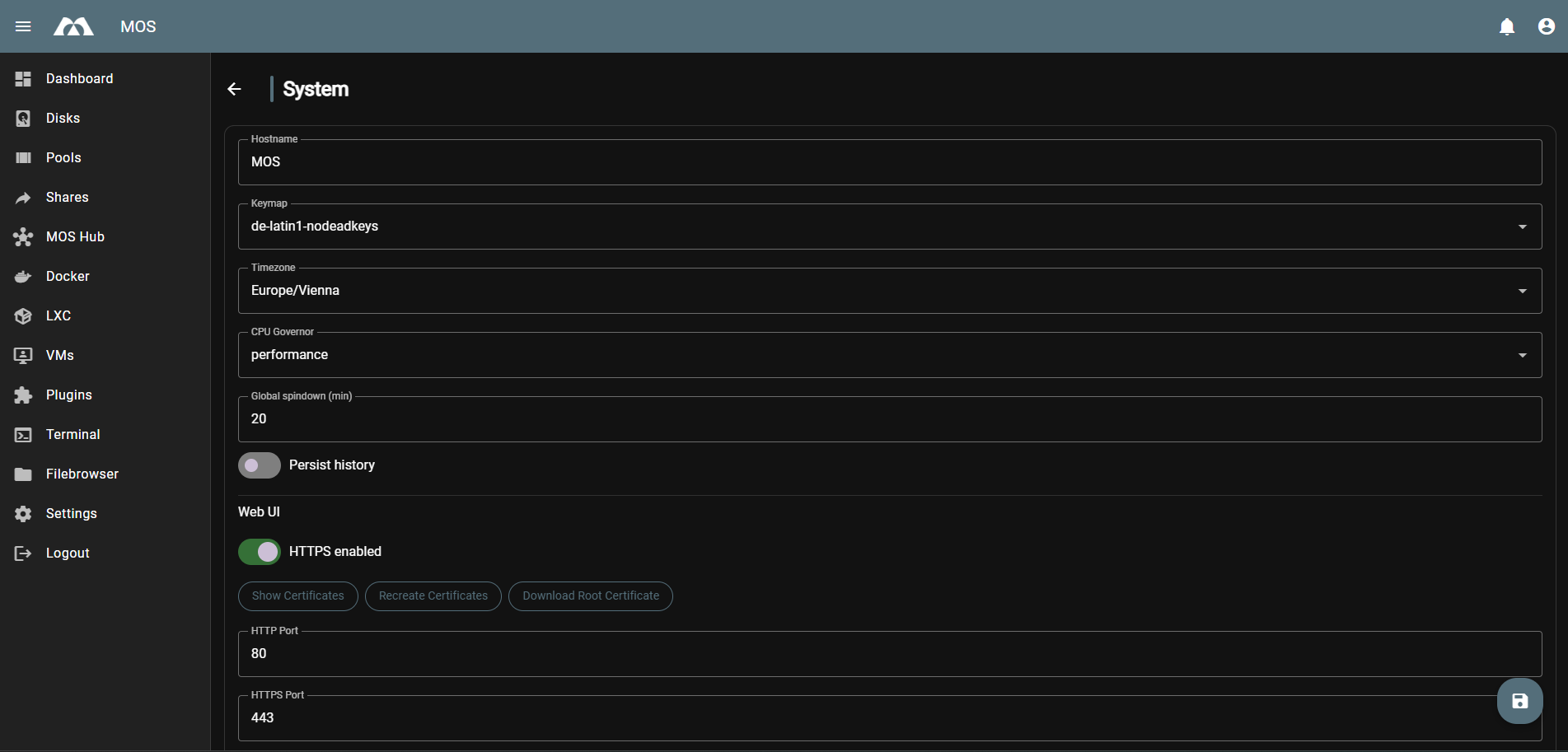
Example:
🖥️ General System Settings
Hostname
Defines the system hostname.
Default:
MOS
- Used for network identification
- Changes may require reconnecting to the system UI
Keymap
Defines the system keyboard layout.
Default:
de-latin1-nodeadkeys
Use cases:
- Console access
- Local keyboard input
Timezone
Defines the system timezone.
Default:
Europe/Vienna
- Affects logs, cron jobs, and scheduled tasks
- Should match the physical system location
CPU Governor
Defines the CPU frequency scaling policy.
Default:
ondemand
Common options:
ondemand– Dynamic scaling based on current system loadperformance– Forces maximum CPU frequencypowersave– Forces minimum CPU frequency to reduce power consumptionconservative– Gradual frequency scaling with slower ramp-up, optimized for power efficiency
Use ondemand for balanced performance and efficiency.
Global Spindown (minutes)
Defines the idle time before disks are spun down.
Default:
20minutes
- Reduces power consumption and noise
- Excessively low values may increase disk wear
Persist History
- Enable / Disable
Controls whether command and system history is preserved across reboots.
Use cases:
- Enable for auditing and troubleshooting
- Disable for privacy-focused or minimal systems
🌐 Web UI Settings
Configure the MOS Web Interface access and security.
Changes to HTTPS settings, Local Domain, HTTP Port, or HTTPS Port require a WebUI restart to take effect.
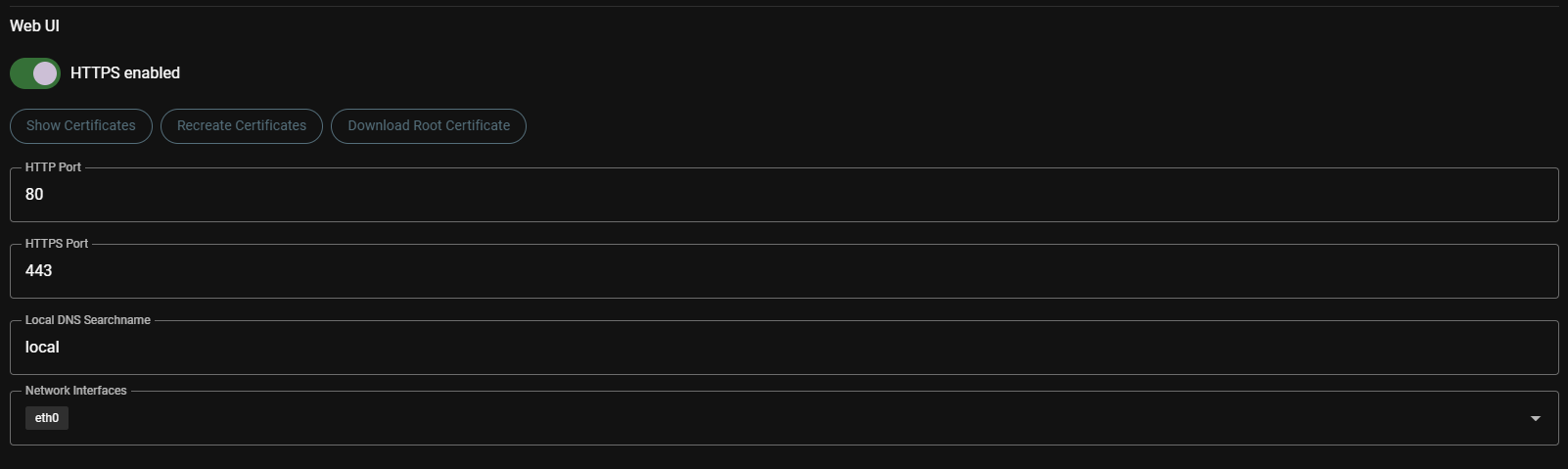
HTTPS Enabled
Enables or disables HTTPS for secure WebUI access.
Default:
Enabled(green toggle)
Ports:
- HTTP Port:
80(default) - Used when HTTPS is disabled or for redirects - HTTPS Port:
443(default) - Secure access port
MOS uses a self-signed certificate for HTTPS. To avoid browser warnings, you can download and import the root certificate on your client devices:
- Click "Download Root Certificate"
- Import the certificate into your browser or system's trusted certificate store
- HTTPS warnings will no longer appear
Certificate Management
- Show Certificates - View current certificate details
- Recreate Certificates - Generate new SSL certificates (useful when certificates expire or for security rotation)
- Download Root Certificate - Download the CA certificate for client import
🔍 Local DNS & Network
Local DNS Searchname
Defines the local DNS search domain for hostname resolution.
Default:
local
Network Interfaces
Select the primary network interface for system operations.
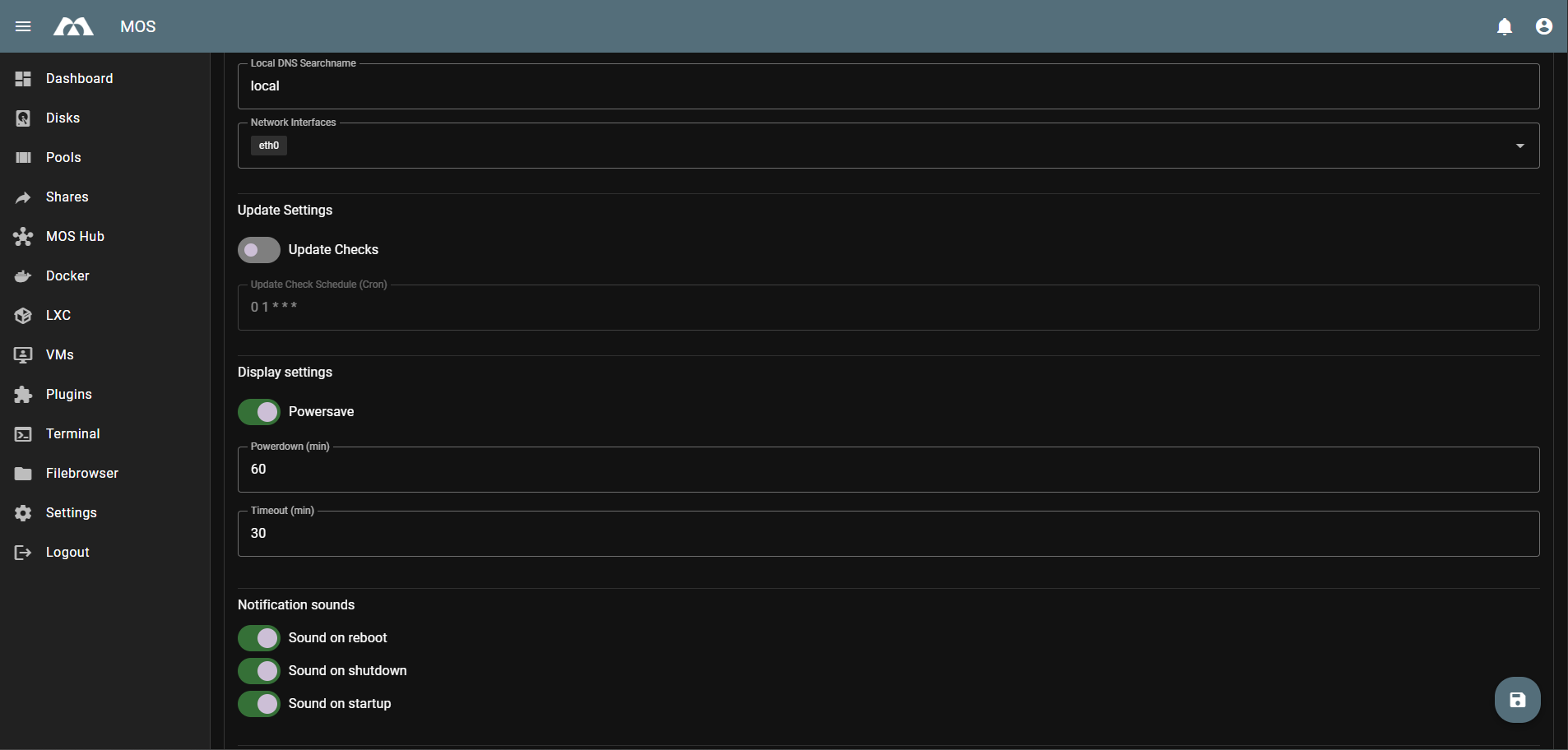
🔄 Update Settings
Update Checks
- Enable / Disable
Automatically check for available MOS updates.
Update Check Schedule (Cron)
Defines the cron schedule for automatic update checks.
Default:
0 1 * * *(daily at 1:00 AM)
Use standard cron syntax. For example:
0 1 * * *- Daily at 1:00 AM0 */6 * * *- Every 6 hours0 0 * * 0- Weekly on Sunday at midnight
🖥️ Display Settings
Powersave
Controls display power-saving behavior.
Default:
- Enabled
Powerdown
Defines the time before the display is powered down.
Default:
60minutes
Timeout
Defines the inactivity timeout for the user interface.
Default:
30minutes
🔊 Notification Sounds
Controls system notification sounds.
Sound on Reboot
- Enable / Disable
Sound on Shutdown
- Enable / Disable
Sound on Startup
- Enable / Disable
- Useful for local systems
- Can be disabled for headless or silent environments
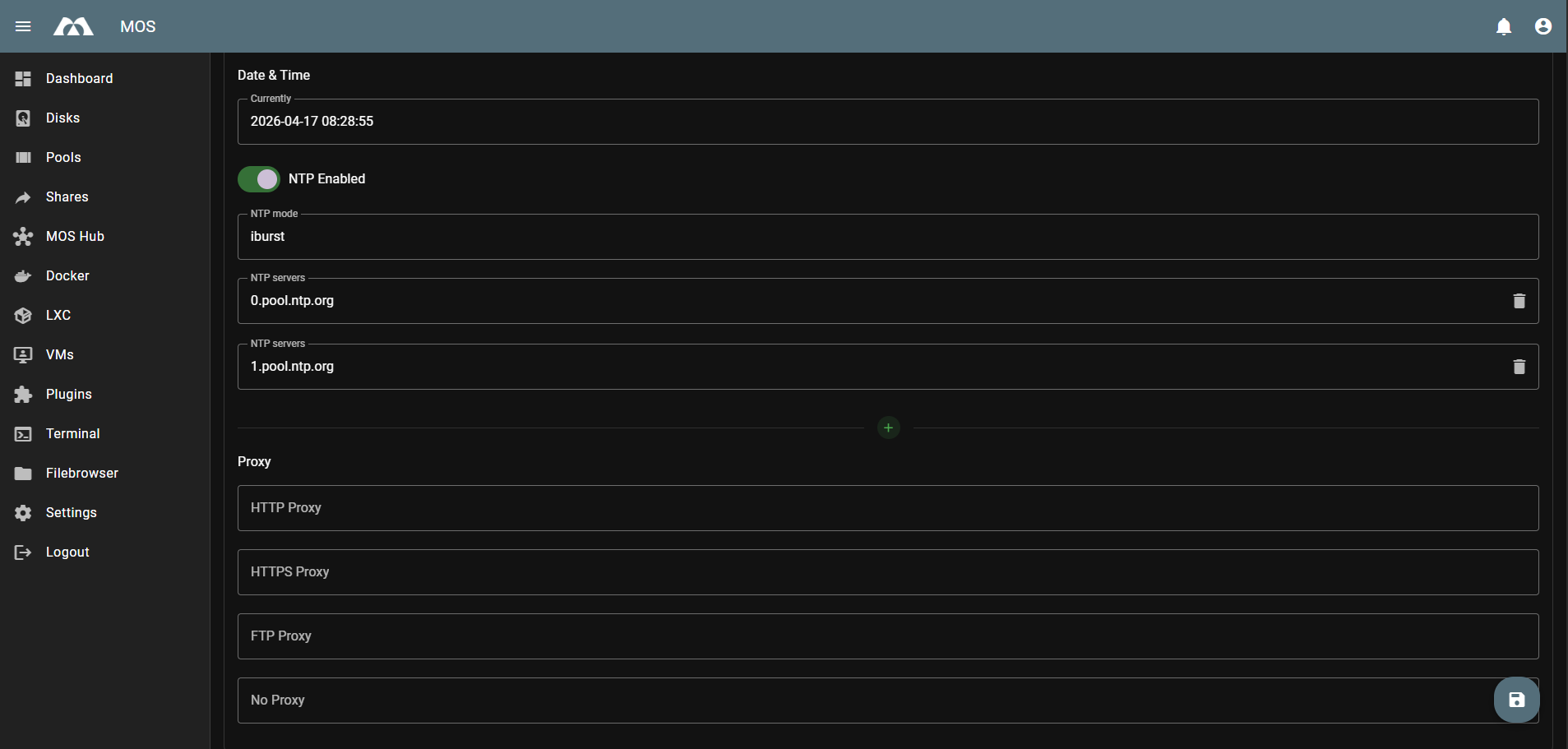
🕐 NTP (Time Synchronization)
NTP Enabled
- Enable / Disable
Enables or disables network time synchronization.
NTP Mode
Defines the NTP synchronization mode.
Default:
iburst
iburst allows faster initial synchronization.
NTP Servers
Defines the NTP servers used for time synchronization.
Default servers:
0.pool.ntp.org1.pool.ntp.org
- Additional servers can be added
- Custom or local NTP servers are supported
🌐 Proxy Settings
Defines global proxy configuration for outbound network traffic.
HTTP Proxy
Defines the HTTP proxy server.
HTTPS Proxy
Defines the HTTPS proxy server.
FTP Proxy
Defines the FTP proxy server.
No Proxy
Defines addresses or domains that bypass the proxy.
Examples:
localhost127.0.0.1.local
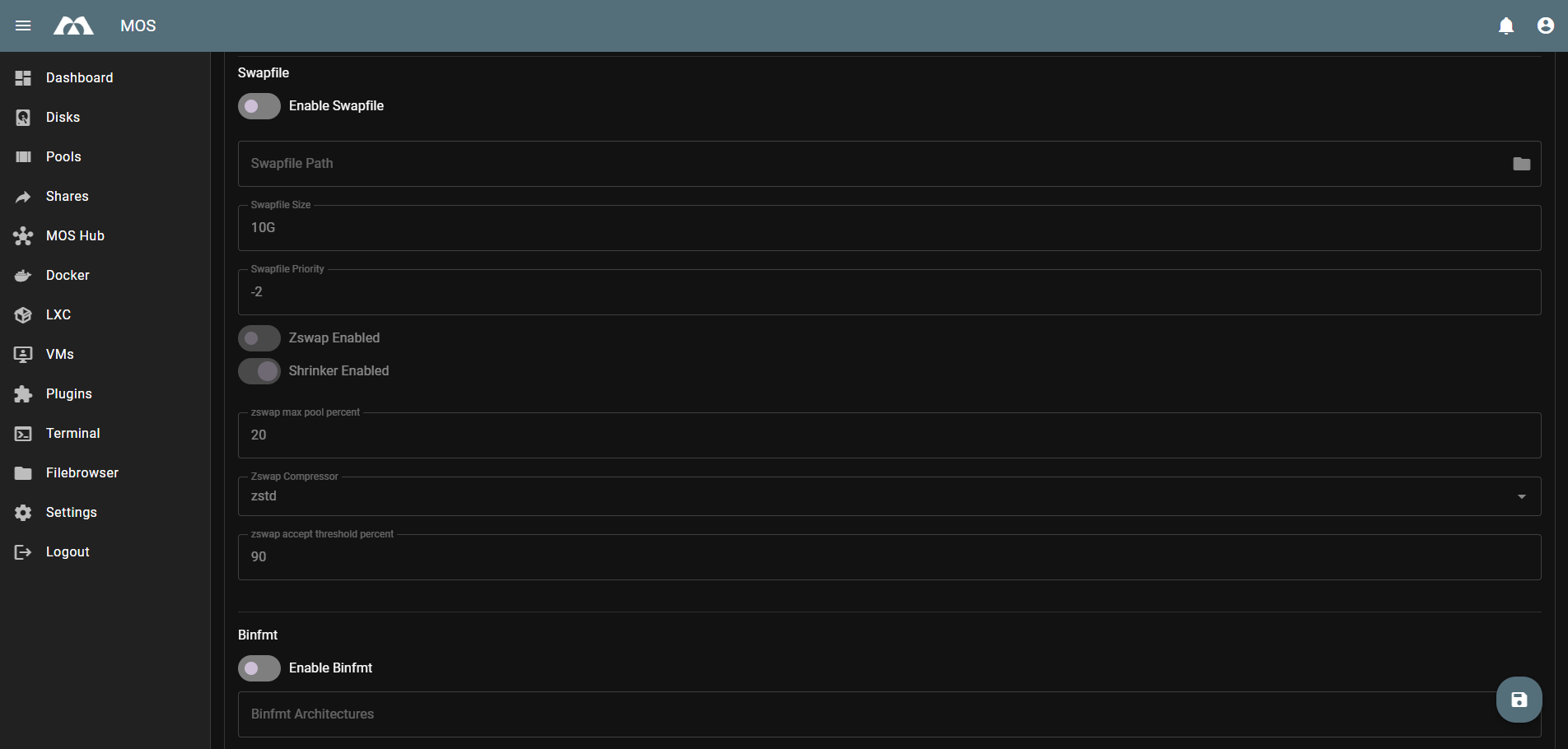
💾 Swapfile
Enable Swapfile
Controls whether the system uses a swap file for additional virtual memory.
- Provides additional memory when physical RAM is exhausted
- Useful for systems with limited RAM
Swapfile Path
Defines the location of the swap file on the filesystem.
Swapfile Size
Defines the size of the swap file.
Swapfile Priority
Defines the priority of the swap file relative to other swap devices.
Default:
-2
⚡ Zswap
Zswap Enabled
Enables or disables the zswap compressed caching feature.
- Compresses memory pages before swapping to disk
- Can improve performance on systems with swap
Shrinker Enabled
Controls whether the zswap shrinker is active.
Zswap Max Pool Percent
Defines the maximum percentage of memory that can be used for the zswap pool.
Default:
20
Zswap Compressor
Defines the compression algorithm used by zswap.
Default:
zstd
Zswap Accept Threshold Percent
Defines the threshold percentage for accepting pages into zswap.
Default:
90
📦 Binfmt
Enable Binfmt
Enables or disables support for additional binary formats through binfmt_misc.
- Allows execution of non-native binary formats
- Used for compatibility layers and emulation
Binfmt Architectures
Defines which additional architectures are supported through binfmt.
The System menu centralizes essential configuration options that affect the entire OS.
Key areas covered:
- System identity and localization
- Power and performance behavior
- UI display and notification settings
- Time synchronization via NTP
- Network proxy configuration
Correct system configuration is critical for stability, performance, and predictable behavior.
Parts of this documentation were created with the assistance of AI tools. All AI-generated content has undergone review, but it may still contain inaccuracies, omissions, or outdated information.