🖥️ Terminal
The MOS Web Terminal provides direct shell access to your MOS system directly from the browser. No SSH client required — the terminal is embedded in the MOS WebUI and connects instantly to the system shell.
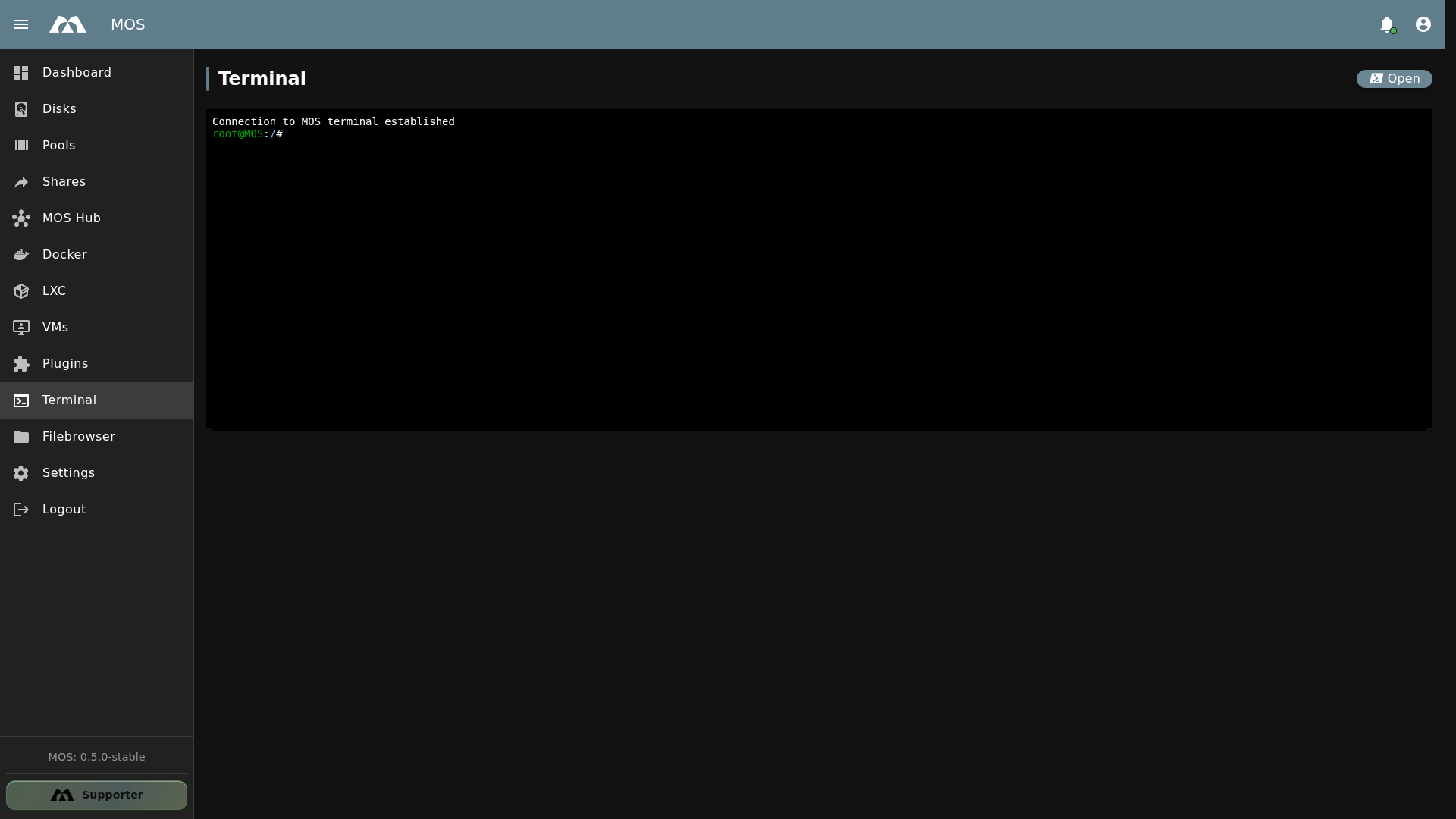
The Terminal page with an active shell session.
📦 Accessing the Terminal
The Terminal is available from the MOS sidebar.
- Navigate to Terminal in the sidebar
- Click Open to start a new terminal session
- The connection is established automatically — you'll see the message:
Connection to MOS terminal established - The shell prompt appears:
root@MOS:/#
info
The terminal connects as the root user. You have full system privileges.
⚡ Using the Terminal
Once connected, you can run any command just like in a regular SSH session.
Common Commands
| Command | Description |
|---|---|
whoami | Show current user (returns root) |
uname -a | Show system and kernel info |
df -h | Show disk space usage |
mos-version | Show MOS version details |
mos-api | Interact with the MOS API |
docker ps | List running Docker containers |
lxc-ls | List LXC containers |
virsh list --all | List virtual machines |
tail -f /var/log/syslog | Follow system log in real-time |
top | Show running processes and resource usage |
Example Session
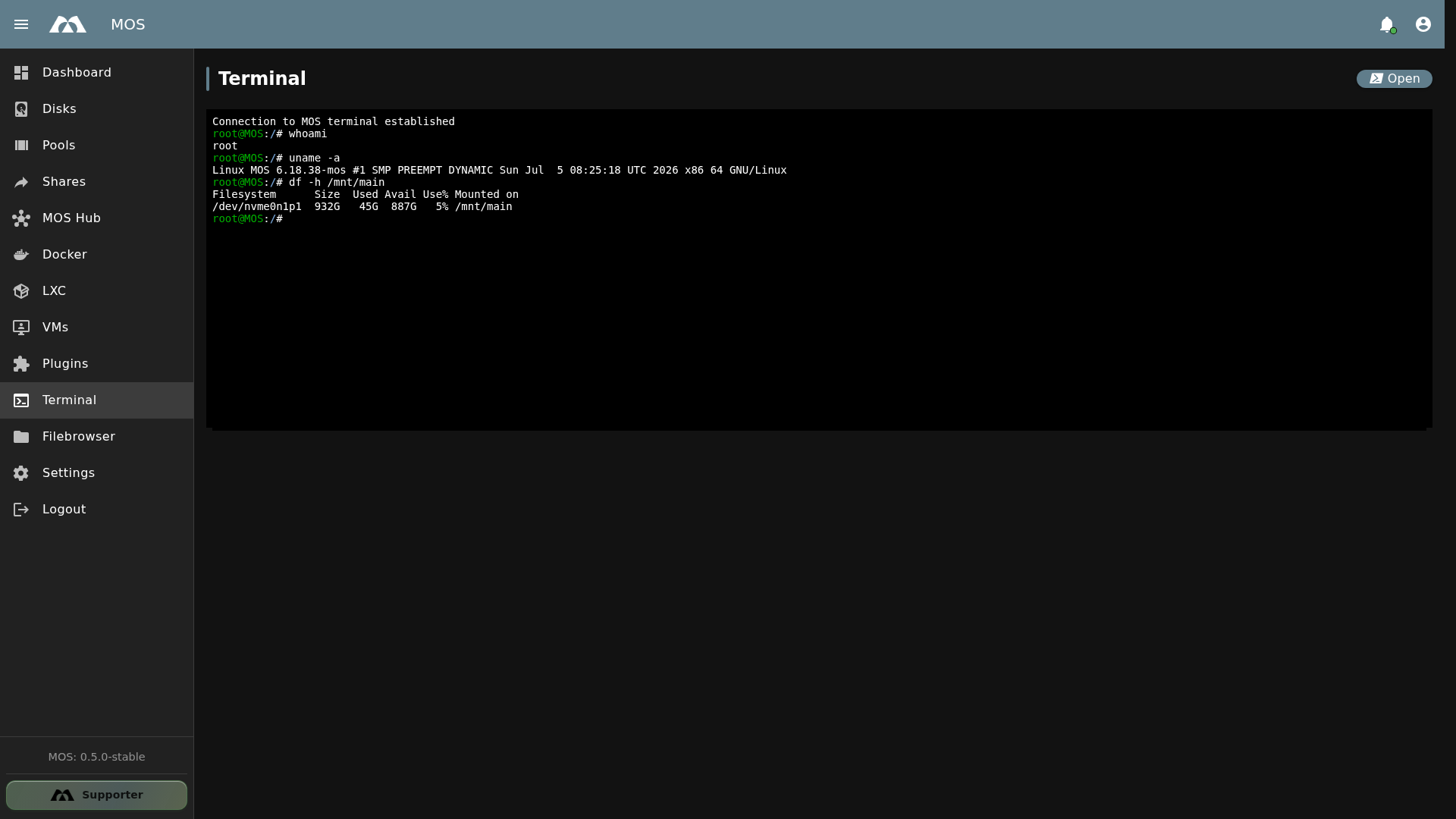
Running commands in the MOS Web Terminal.
root@MOS:/# whoami
root

root@MOS:/# uname -a
Linux MOS 6.18.38-mos #1 SMP PREEMPT_DYNAMIC Sun Jul  5 08:25:18 UTC 2026 x86_64 GNU/Linux

root@MOS:/# df -h /mnt/main
Filesystem      Size  Used Avail Use% Mounted on
/dev/nvme0n1p1  932G   45G  887G   5% /mnt/main
🔧 Features
Web-Based Shell
- No installation required — works directly in the browser
- Full root access — complete system control
- Real-time interaction — instant command execution
- Persistent session — stays active while the page is open
Use Cases
| Use Case | Example |
|---|---|
| System administration | Checking logs, managing services, editing config files |
| Docker management | docker ps, docker logs, docker restart |
| LXC management | lxc-attach, lxc-stop, lxc-start |
| VM management | virsh start, virsh shutdown, virsh console |
| Network troubleshooting | ping, ip addr, netstat, traceroute |
| File management | ls, cp, mv, rm, nano, vi |
| Package management | apt update, apt install |
| VPN setup | tailscale up, netbird up |
| NUT/UPS configuration | Editing /boot/config/system/nut/ files |
⚠️ Important Notes
Security
The terminal provides full root access to the system. Be cautious when running commands — there is no confirmation prompt for destructive operations.
- Only share terminal access with trusted users
- Avoid running unverified commands from external sources
- Use
sudois not required — you are alreadyroot - All actions in the terminal are executed immediately
Session Management
- The terminal session ends when you close the page or navigate away
- There is no session persistence — reopening the page starts a new session
- Long-running commands will be interrupted if you close the page
- Use
screenortmuxfor persistent sessions that survive page reloads
For long-running tasks (backups, updates, large file transfers), consider using tmux or screen inside the terminal. This way, the task continues even if you close the browser tab.
Alternatives
The Web Terminal is convenient for quick tasks, but for extended work sessions, consider using SSH instead:
ssh root@<MOS-IP-ADDRESS>
See Network Services for instructions on enabling SSH access.
📚 Best Practices
- Test commands first — If you're unsure about a command, test it in a non-destructive way
- Use
screenortmux— For long-running operations, use a terminal multiplexer to prevent losing your session - Check logs regularly — Use
tail -f /var/log/syslogorjournalctl -fto monitor system activity - Keep commands documented — Note down important commands and configurations for future reference
- Close the terminal when done — Although sessions end automatically, it's good practice to close the page when finished
✅ Summary
The MOS Web Terminal provides a convenient way to access the system shell directly from the browser.
Key points:
- Direct browser access — no SSH client needed
- Full root shell — complete system control
- Instant connection — click Open and start typing
- All commands available — same as a regular SSH session
- Session ends on page close — use
tmuxorscreenfor persistent sessions
The Web Terminal is ideal for quick administrative tasks, troubleshooting, and system management without leaving the MOS WebUI.
Parts of this documentation were created with the assistance of AI tools. All AI-generated content has undergone review, but it may still contain inaccuracies, omissions, or outdated information.