📊 S.M.A.R.T.
S.M.A.R.T. (Self-Monitoring, Analysis, and Reporting Technology) is a monitoring system built into storage devices (HDD, SSD, NVMe) that detects and reports various indicators of drive reliability. MOS integrates S.M.A.R.T. monitoring directly into the WebUI, allowing you to keep an eye on your drives' health without any additional tools.
⚙️ S.M.A.R.T. Settings
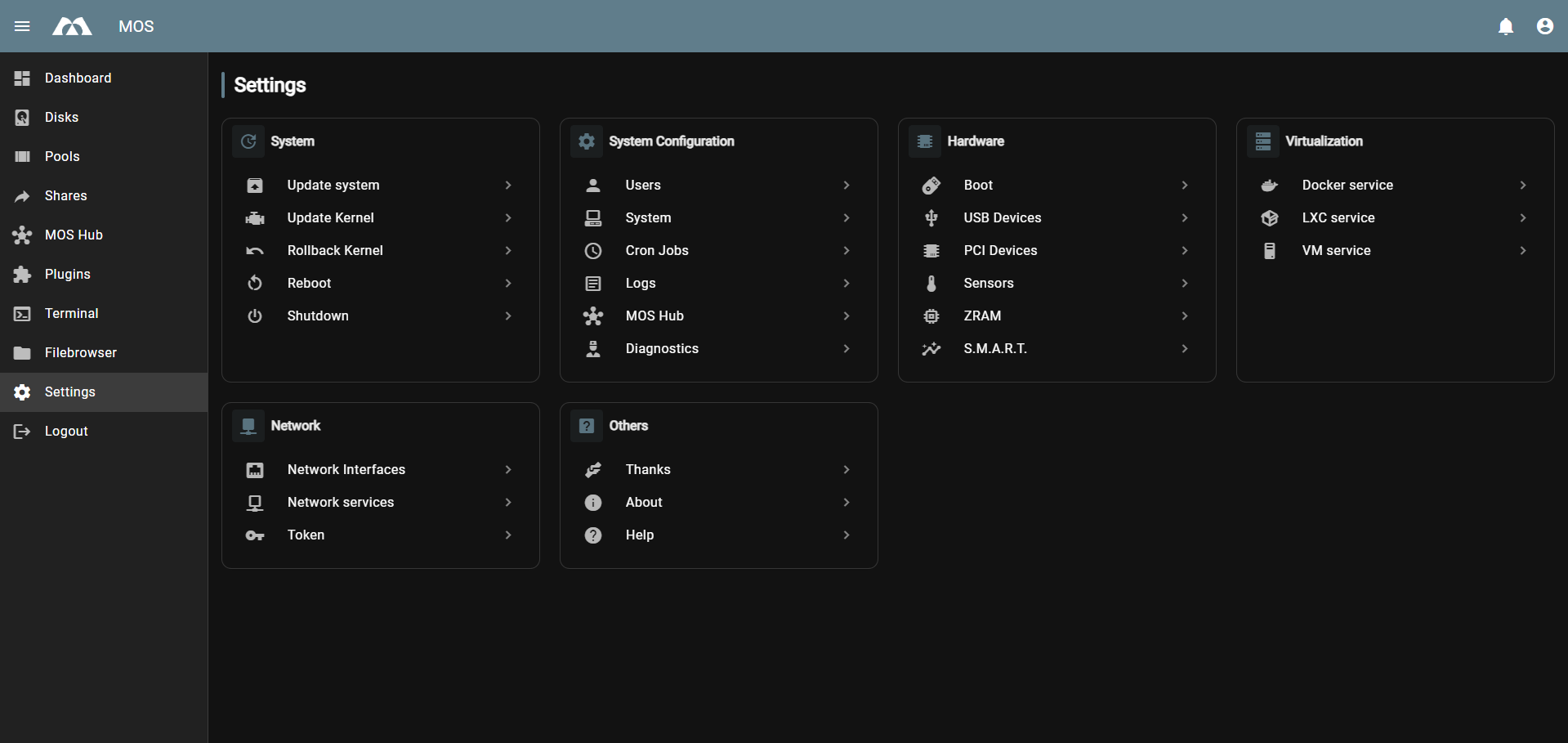
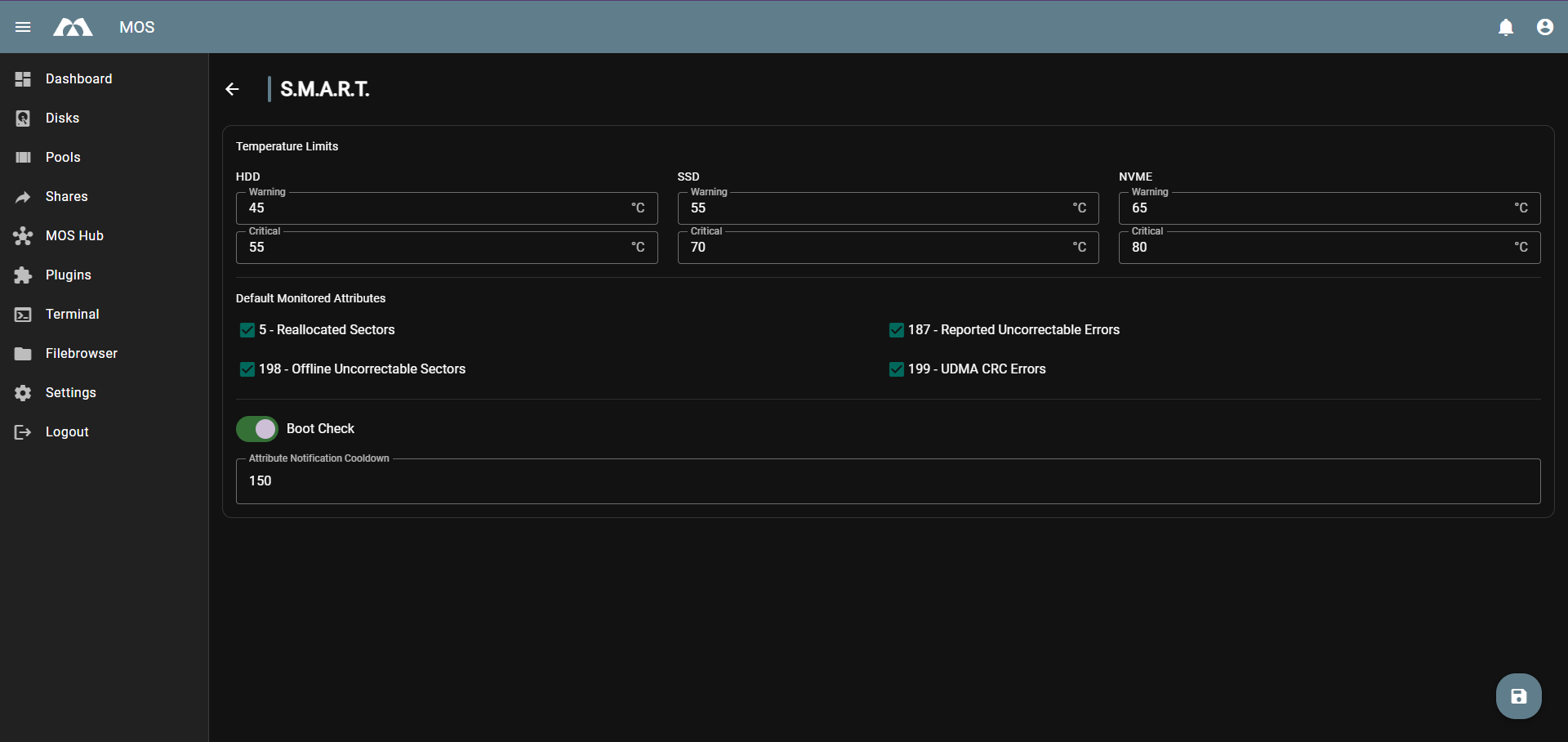
Navigate to Settings → Hardware → S.M.A.R.T. to configure the global S.M.A.R.T. monitoring settings.
Temperature Limits
Define warning and critical temperature thresholds per drive type. MOS will send a notification when a threshold is exceeded.
| Drive Type | Warning (default) | Critical (default) |
|---|---|---|
| HDD | 45 °C | 55 °C |
| SSD | 55 °C | 70 °C |
| NVMe | 65 °C | 80 °C |
When the Critical temperature threshold is exceeded, MOS will send an urgent notification. Check your drive and system cooling immediately.
Default Monitored Attributes
These S.M.A.R.T. attributes are monitored by default for all drives. If any of these exceed their threshold, a notification is triggered.
| ID | Attribute | Description |
|---|---|---|
| 5 | Reallocated Sectors | Number of sectors the drive has remapped due to read/write errors. Any value above 0 is a warning sign. |
| 187 | Reported Uncorrectable Errors | Errors that could not be corrected by the drive's ECC. Should always be 0. |
| 198 | Offline Uncorrectable Sectors | Sectors found uncorrectable during offline scanning. Indicates physical damage. |
| 199 | UDMA CRC Errors | Errors during data transfer between drive and controller — often caused by a faulty cable or connector. |
Individual drives can override these defaults in their own S.M.A.R.T. configuration — see below.
Boot Check
When enabled, MOS automatically runs a S.M.A.R.T. check on all drives during system startup and sends a notification if any issues are detected.
Attribute Notification Cooldown
Defines the minimum time (in minutes) between repeated notifications for the same attribute. Default is 150 minutes.
This prevents notification spam if an attribute is continuously above its threshold.
🖥️ Per-Disk S.M.A.R.T. Info
You can view and configure S.M.A.R.T. settings for each individual drive directly from the Disks page.
Click the action menu on any disk and select SMART infos:

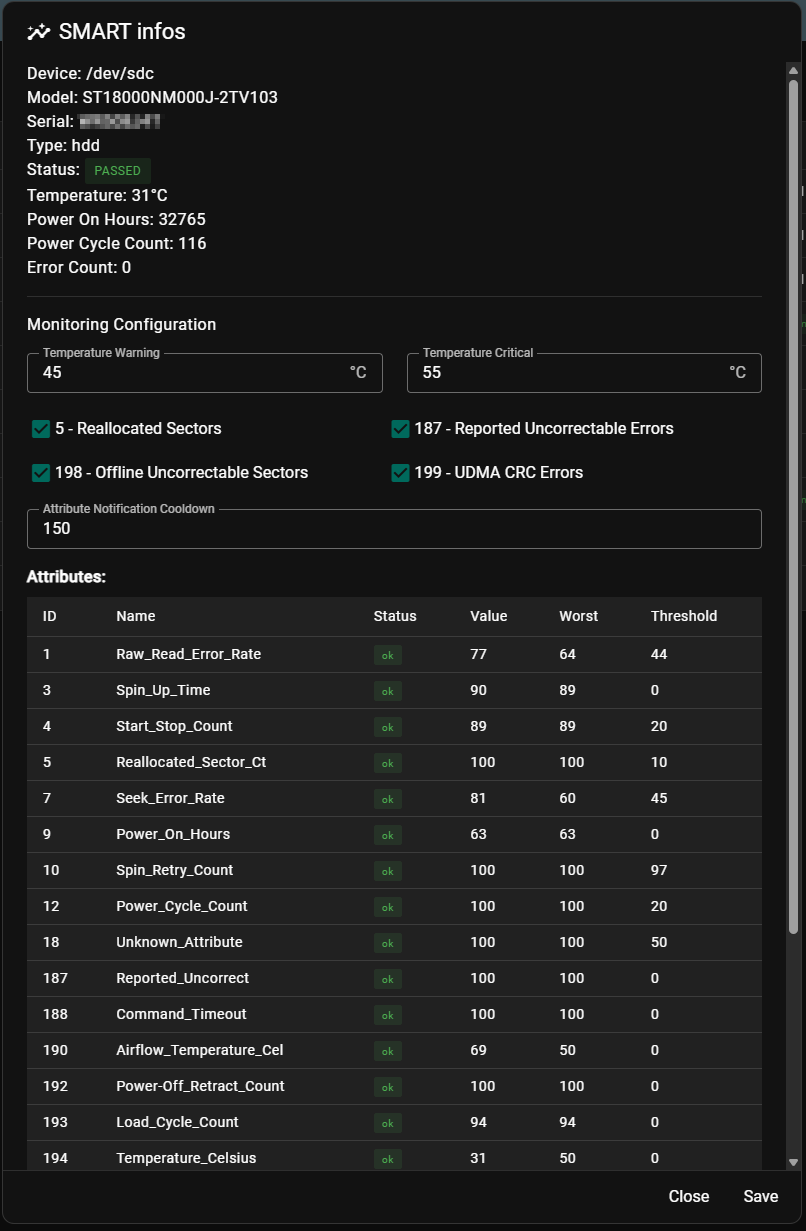
The S.M.A.R.T. info panel shows:
Device Information
| Field | Description |
|---|---|
| Device | The system device path (e.g. /dev/nvme0n1) |
| Model | Drive model name |
| Serial | Drive serial number |
| Type | Drive type (nvme, ssd, hdd) |
| Status | Overall S.M.A.R.T. health — PASSED or FAILED |
| Temperature | Current drive temperature in °C |
| Power On Hours | Total hours the drive has been powered on |
| Power Cycle Count | Number of times the drive has been powered on/off |
| Error Count | Total number of errors reported by the drive |
Monitoring Configuration
Each drive can override the global S.M.A.R.T. defaults individually:
- Temperature Warning / Critical — per-drive temperature thresholds
- Monitored Attributes — enable or disable specific attributes per drive
- Attribute Notification Cooldown — per-drive cooldown override
Click Save to apply the per-drive configuration.
Attributes Table
Shows all S.M.A.R.T. attributes reported by the drive with the following columns:
| Column | Description |
|---|---|
| ID | Attribute identifier |
| Name | Attribute name |
| Status | Current status (ok, warning, critical) |
| Value | Current raw value |
| Worst | Worst recorded value |
| Threshold | Threshold below which the drive is considered failing |
Not all drives report all S.M.A.R.T. attributes. NVMe drives use a different attribute set than traditional HDDs and SSDs.
Parts of this documentation were created with the assistance of AI tools. All AI-generated content has undergone review, but it may still contain inaccuracies, omissions, or outdated information.