🔧 ARM Support (Experimental)
ARM boot/hardware is currently considered experimental. Not all ARM boards/hardware are supported currently.
- MOS only supports EFI boot on ARM boards
- Please check if your ARM board supports EFI boot and how to install it
- A permanent EFI install is recommended for MOS boot (out of scope of this tutorial)
- Minimum 4GB RAM required, 8GB RAM strongly recommended
📥 Step 1: Download MOS for ARM
- Go to the MOS Releases page
- Download the ARM64 ZIP archive (
mos_*-beta_arm64.zip)
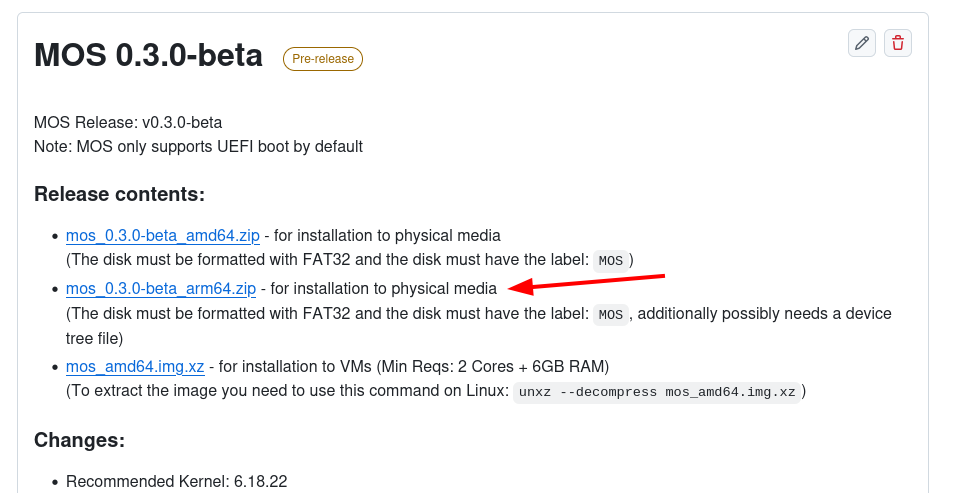
- Extract the contents of the archive directly into the root of your boot device (USB stick or SD card formatted as FAT32 with label
MOS)
🌳 Step 2: Download Device Tree File
The device tree file (.dtb) is required for your specific ARM board/chip.
- Look at the changelog from the MOS release and go to the Kernel repository
- Download the device tree file archive (
6.*-device_tree_files_arm64.zip)
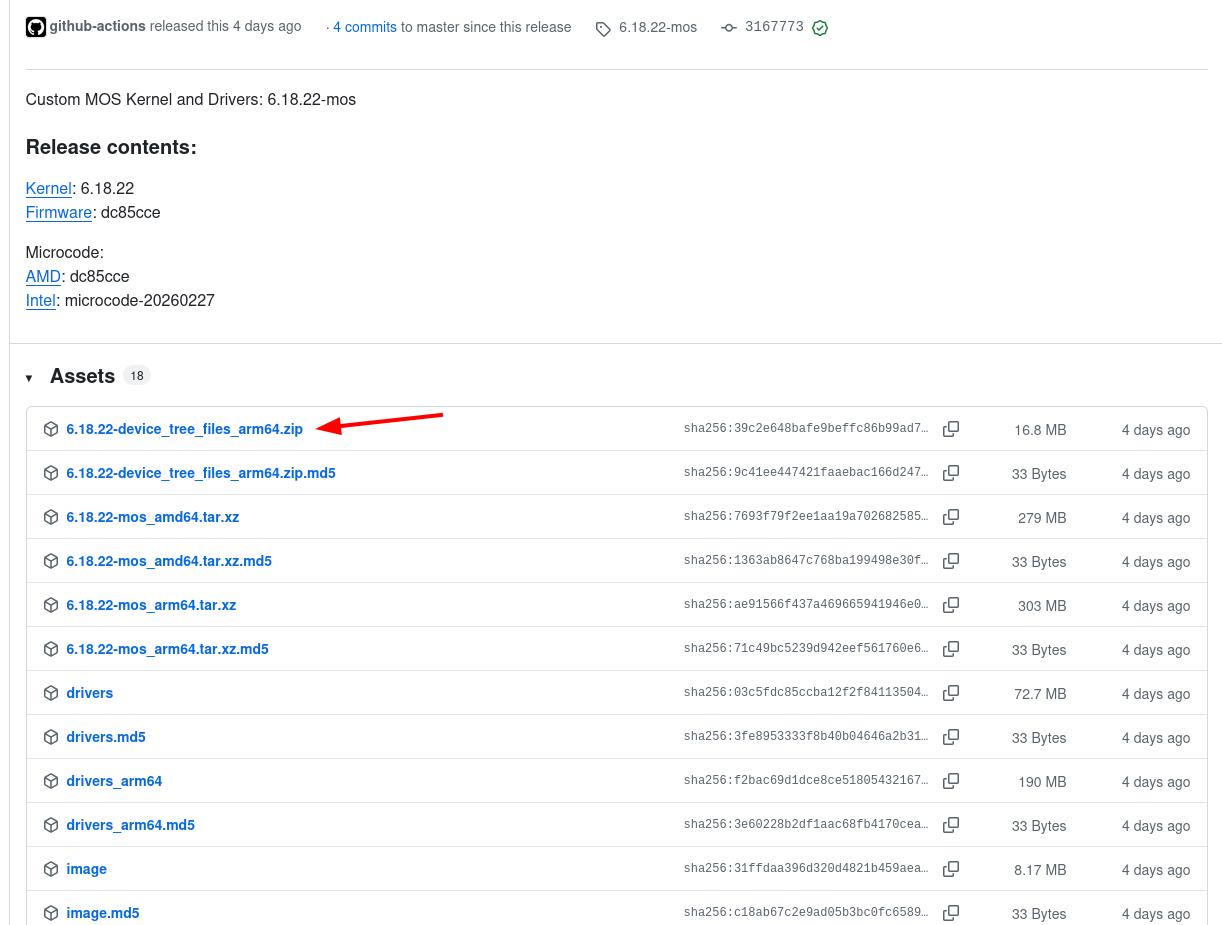
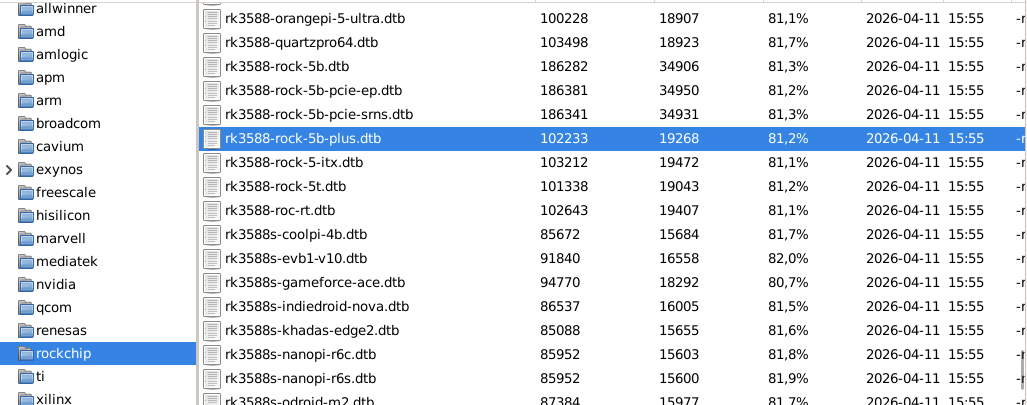
- Extract the archive and search for your specific chip/board
- Find and extract the
.dtbfile for your device
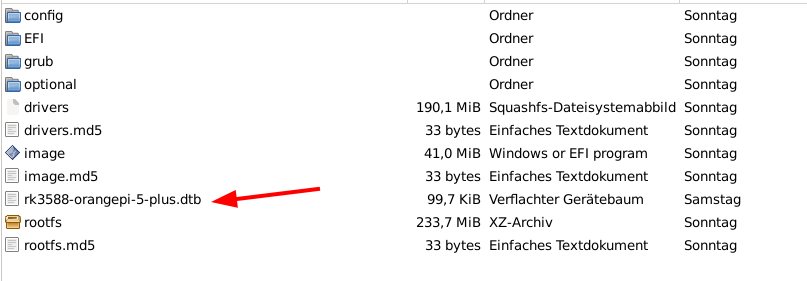
- Copy the device tree file (e.g.,
rk3588-orangepi-5-plus.dtb) to the root of your boot device
⚙️ Step 3: Configure GRUB
Edit the grub/grub.cfg file on your boot device:
- Open
grub/grub.cfgin a text editor - Find the commented
devicetreeline:
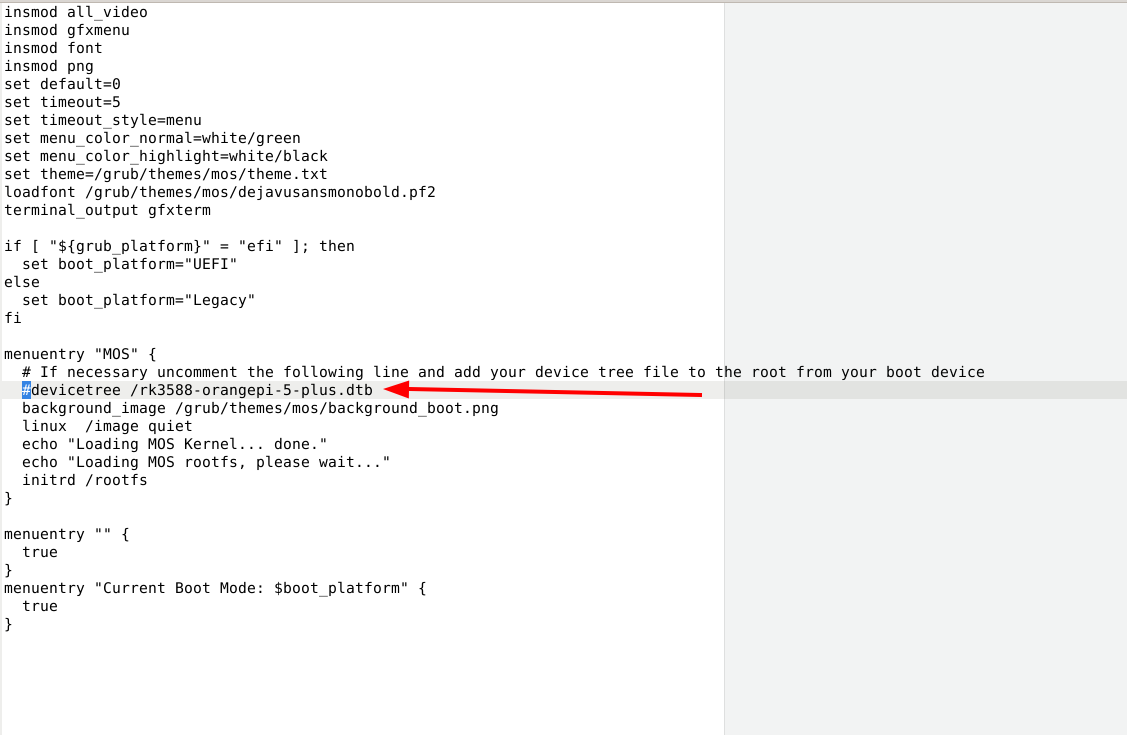
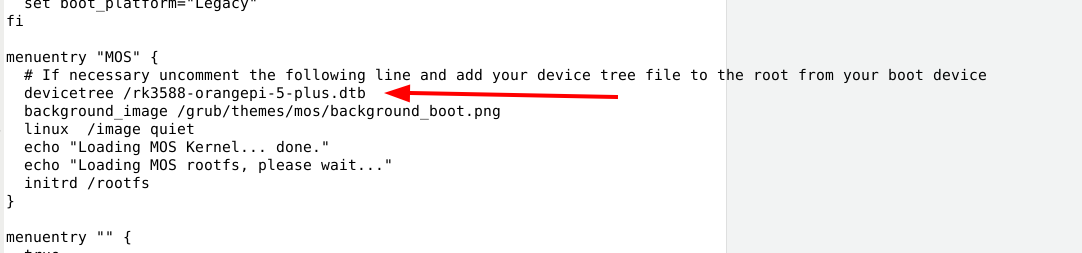
- Uncomment the line and change the filename to match your device tree:
devicetree /rk3588-orangepi-5-plus.dtb
Some ARM boards may allow loading the device tree directly in the bootloader. Check your board's documentation for specifics.
🖥️ Step 4: Boot from ARM Device
- Plug the boot device into your ARM board
- Power on and enter the EFI menu (usually by pressing F2, F10, F12, or Del during boot)
- Change the boot order to ensure booting from your USB/SD device
- Save and exit the EFI menu
MOS should now boot on your ARM device!
📦 Custom Kernel Module Configuration (Optional)
Some ARM boards require specific kernel module parameters to function correctly (e.g., disabling certain features, enabling hardware-specific options).
MOS supports persistent modprobe.d configurations via:
/boot/optional/modprobe.d/<your-config>.conf
Example:
/boot/optional/modprobe.d/ahci-mask.conf
For detailed instructions, see the Kernel Module Configuration documentation.
💾 Post-Installation (Optional)
After successful boot, you can install MOS to disk:
Ensure your EFI supports booting from disk (generally supported on most ARM boards with permanent EFI).
It is recommended not to erase your external USB/SD boot device even after installing to disk. This provides a safety boot disk for recovery.
✅ Tested and Verified ARM Devices
The following ARM devices have been tested and are confirmed working:
| Device | RAM | Status |
|---|---|---|
| Orange Pi 5 Plus | 16GB | ✅ Fully Working |
| Raspberry Pi 4b | 8GB | ✅ Fully Working |
🆘 Need Help?
If you have any questions or issues with ARM boot:
- Join our Discord and let us know if you had success booting MOS on ARM
- Report your board model and any error messages
- Share your device tree filename to help expand our supported devices list
Parts of this documentation were created with the assistance of AI tools. All AI-generated content has undergone review, but it may still contain inaccuracies, omissions, or outdated information.