📂 Create the First Shares
Shares define how directories on a storage pool are exposed to users and services.
They are typically used for:
- File access over the network
- Application data
- Media libraries
- Backups
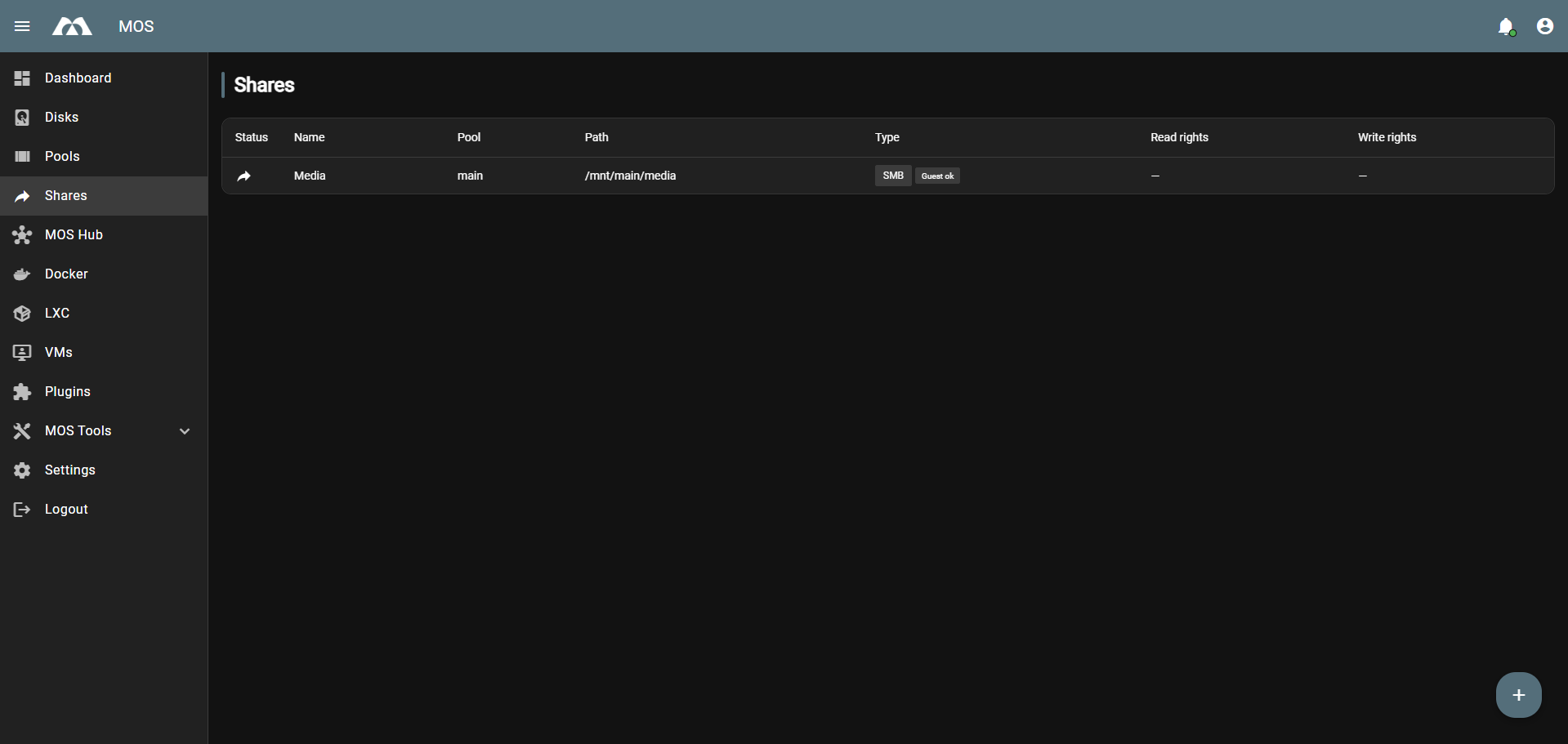
Navigate to:
Shares → Create Share
⚙️ Share Configuration Fields
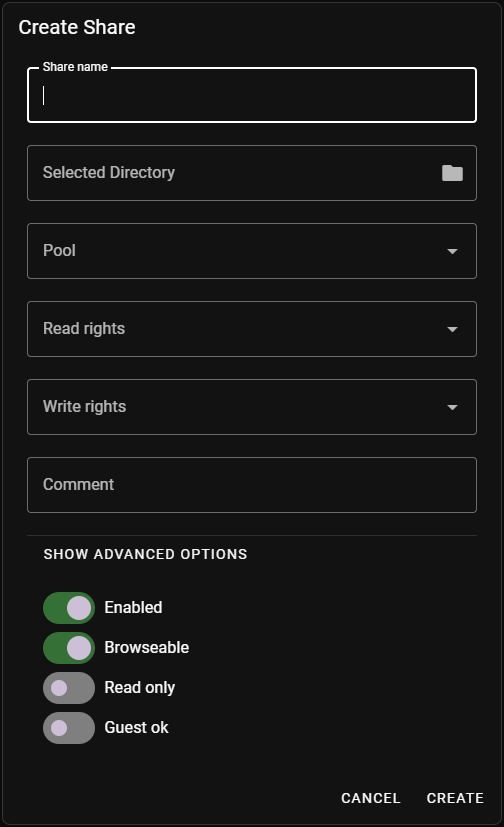
🏷️ Share Name
Defines the name of the share as it appears in the system and on the network.
Best practices:
- Use short, descriptive names
- Avoid spaces and special characters
Examples:
| Name | Use Case |
|---|---|
appdata | Container configuration data |
media | Movies, music, photos |
backup | Backup storage |
downloads | Download staging area |
📁 Selected Directory
Defines the directory path of the share.
- The directory is created automatically if it does not already exist
- The directory name is derived from the selected path
Example:
/mnt/main/media
In this example:
main→ the selected poolmedia→ the directory created for the share
🗄️ Pool
Selects the storage pool where the share will be created.
Example: main
The share directory will always be created inside the selected pool.
👁️ Read Rights
Defines which users are allowed to read from the share.
- Multiple users can be selected
- If no user is selected, access may be restricted depending on configuration
✏️ Write Rights
Defines which users are allowed to write to the share.
- Only selected users can modify files
- Write access implies read access
💬 Comment
Optional description for the share.
Useful for documenting the purpose of the share, especially in larger setups.
🔩 Advanced Options
🔘 Enabled
Enables or disables the share.
| State | Effect |
|---|---|
| ✅ Enabled | Share is accessible |
| ❌ Disabled | Share is not accessible — data remains untouched |
🔍 Browseable
Controls whether the share is visible when browsing available shares.
| State | Effect |
|---|---|
| ✅ Enabled | Share is visible in network browser |
| ❌ Disabled | Share is hidden but still accessible if the path is known |
🔒 Read Only
Forces the share into read-only mode.
- Prevents any write operations
- Overrides write permissions
👤 Guest OK
Allows access without authentication.
Enable this option only in trusted networks.
🔧 Allow execute always
Allows files in the share to be executed with full execute permissions.
| State | Effect |
|---|---|
| ✅ Enabled | Files can be executed with execute permissions |
| ❌ Disabled | Execute permissions are restricted |
This option is useful for shares that need to store and execute executable files (e.g., scripts, binaries). :::
📋 Managing Existing Shares
The Shares overview displays all configured shares.
Each share shows:
- Share name
- Directory path
- Associated pool

🎛️ Share Actions
Each share provides a context menu with the following actions:
| Action | Description |
|---|---|
| Edit | Modify share configuration and permissions |
| Delete | Remove the share |

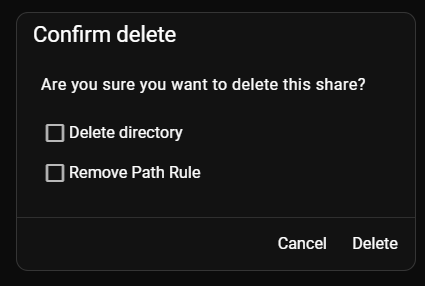
When deleting a share, an additional option is available:
| Option | Description |
|---|---|
| Delete directory | Permanently removes the share directory and all its contents |
| Remove Path Rule | Removes the path rule from the configuration |
All data in the share directory will be permanently lost.
✅ Summary
To create your first share, follow these steps:
- Choose a clear share name
- Select a pool
- Define the directory path (created automatically if missing)
- Assign read and write permissions
- Adjust advanced options if required
Shares are the primary way to expose storage to users and applications.
Parts of this documentation were created with the assistance of AI tools. All AI-generated content has undergone review, but it may still contain inaccuracies, omissions, or outdated information.