🌐 Network Configuration
MOS provides a flexible network configuration system supporting:
- Multiple network interfaces (Multi-NIC)
- Network bridges
- VLAN configuration
- IPv4 and IPv6 support
- DHCP or static IP configuration
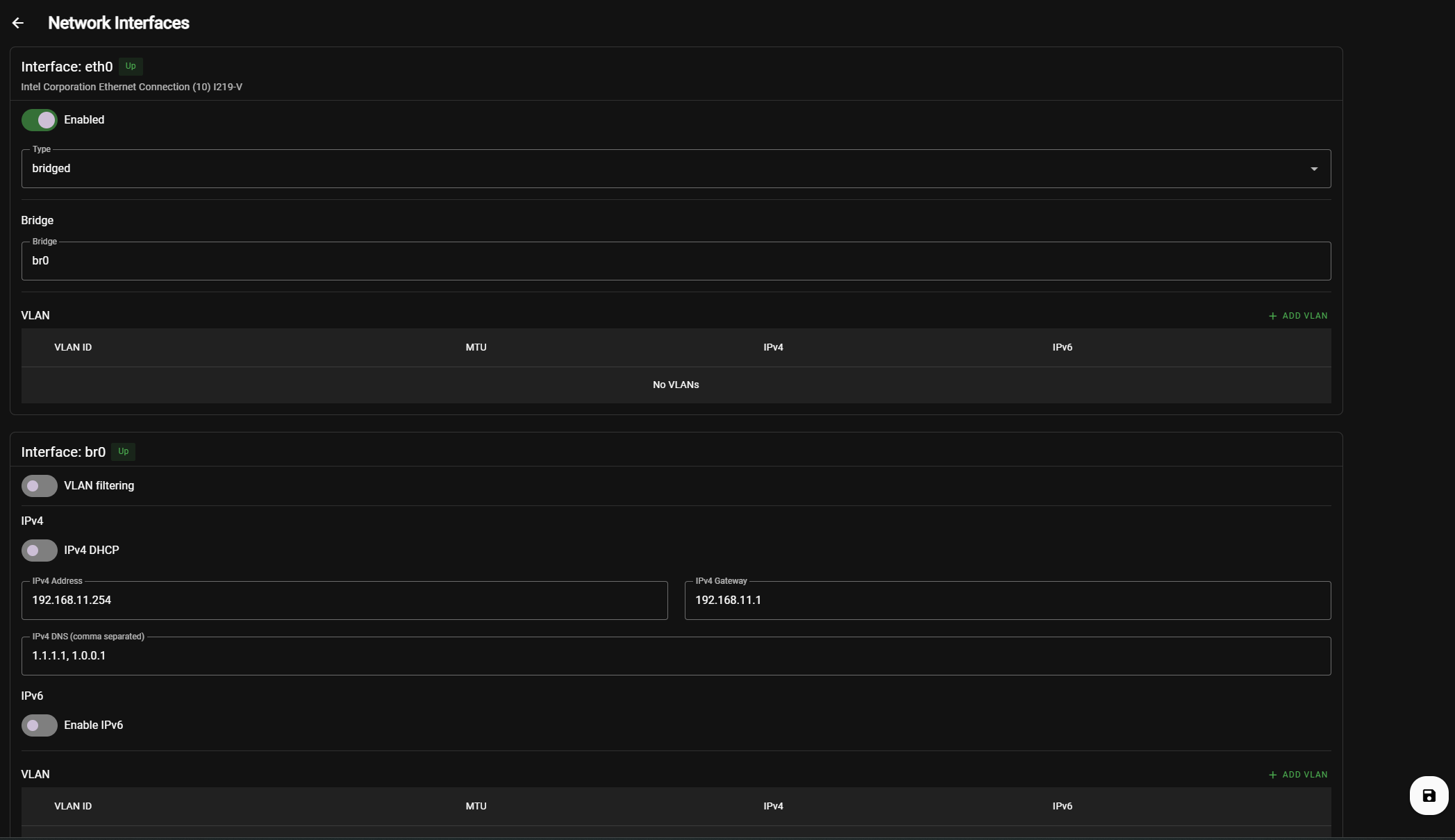
The network configuration can be managed through the MOS WebUI.
Settings → Network Interfaces
This section defines how the system connects to the network and how services such as Docker, LXC, VMs, and Shares are exposed.
Example:
When applying network changes, MOS protects you from accidental lockouts.
After applying a new network configuration:
- MOS starts a 60 second confirmation timer
- You must click Accept to confirm the new configuration
If the configuration is not confirmed within 60 seconds:
- The previous network configuration will be automatically restored
This prevents losing access to the WebUI due to incorrect network settings.
🔁 Confirming the Configuration
After applying changes, the Network Interfaces page must be opened again to confirm the new configuration.
If the IP address did not change:
- Simply reopen the Network Interfaces page
- Click Accept within the 60 second window
🌐 If the IP Address Changed
If the network configuration changes the IP address of the MOS system:
- Open the WebUI using the new IP address
- Navigate again to:
Settings → Network Interfaces
- Click Accept within 60 seconds
You must access the WebUI using the new address before the 60 second timer expires.
If the configuration is not confirmed within 60 seconds:
- MOS automatically restores the previous network configuration
- The system becomes reachable again via the old IP address
This mechanism ensures you cannot permanently lock yourself out of the system.
🖧 Network Interfaces
Each detected network interface can be configured individually.
Typical interfaces include:
- Physical network interfaces (e.g.
eth0,eth1) - Bridge interfaces (e.g.
br0) - VLAN interfaces
Example view:
eth0→ physical network interfacebr0→ bridge used by VMs and containers
🖧 Multi-NIC Support
MOS supports multiple physical network interfaces.
This allows setups such as:
- Separate management and VM networks
- Storage network isolation
- Multiple bridges
- Advanced homelab network topologies
Example:
| Interface | Usage |
|---|---|
| eth0 | Management network |
| eth1 | VM network |
| br0 | Bridge for virtualization |
Interface
Specifies the physical network interface.
Example:
eth0
This is usually the primary Ethernet interface detected by the system.
Type
Defines how the network interface is used by MOS.
The following interface types are available:
ethernet
Uses the physical network interface directly without creating a bridge.
Characteristics:
- Simple and minimal configuration
- Interface receives the IP address directly
- No virtual bridge is created
Use cases:
- Systems without Docker, LXC, or VMs
- Simple standalone servers
- Minimal network setups
Limitations:
- Not suitable for advanced container or VM networking
- Containers and virtual machines cannot be attached directly
bridged (recommended)
Creates a Linux bridge and attaches the physical interface to it.
Characteristics:
- The system and all services share the same network
- Containers and VMs appear as full devices on the LAN
- Required for advanced networking features
Use cases:
- Docker containers with custom networks
- LXC containers
- Virtual machines
- Most server setups
This is the default and recommended mode for most installations.
bond
Combines multiple physical network interfaces into a single logical interface.
Characteristics:
- Increased redundancy and/or throughput
- Multiple NICs act as one interface
- Requires compatible switch configuration
Use cases:
- High availability setups
- Increased network bandwidth
- Multi-NIC servers
Switch-side configuration may be required (LACP or static bonding) Misconfiguration can lead to loss of network connectivity
Type Selection Guide
| Scenario | Recommended Type |
|---|---|
| Single NIC, Docker / VMs | bridged |
| Single NIC, no containers | ethernet |
| Multiple NICs, redundancy | bond |
| High-performance networking | bond |
IPv4 DHCP
Enables or disables automatic IPv4 configuration via DHCP.
- Enabled:
IP address, gateway, and DNS are assigned automatically by the network. - Disabled:
Static IPv4 configuration is required.
Disable DHCP for servers and use a static IP address.
IPv4 Address
Defines the static IPv4 address of the system.
Example:
192.168.11.254
This address is used to access the MOS web interface and network services.
IPv4 Gateway
Specifies the default gateway for outbound network traffic.
Example:
192.168.11.1
This is typically the router IP address.
IPv4 DNS (comma separated)
Defines DNS servers used for name resolution.
Example:
1.1.1.1, 1.0.0.1
Multiple DNS servers can be specified, separated by commas.
Enable IPv6
Enables or disables IPv6 support for the interface.
- Enabled:
System will accept and configure IPv6 addresses. - Disabled:
IPv6 traffic is ignored.
Only enable IPv6 if your network infrastructure fully supports it.
🏷 VLAN Configuration
MOS supports creating VLAN interfaces directly from the WebUI.
To create a VLAN:
Add VLAN
VLAN Settings
| Setting | Description |
|---|---|
| VLAN ID | The VLAN identifier (e.g. 10, 20, 30) |
| MTU | Optional MTU size |
| No IP Assignment | VLAN used only for bridging |
VLAN with IP Configuration
If No IP Assignment is disabled, you can configure:
- IPv4 DHCP
- Static IPv4
- IPv6
This allows MOS itself to communicate within the VLAN network.
VLAN Use Cases
Typical scenarios include:
- Dedicated networks for VMs
- Storage networks
- Management networks
- Segmented homelab environments
Best Practices
- Use a static IPv4 address for servers
- Keep bridged networking enabled for container and VM support
- Configure reliable DNS servers
- Avoid changing network settings remotely without console access
✅ Summary
MOS networking supports:
- Multiple network interfaces
- Bridge networking
- VLAN configuration
- Static or DHCP networking
- IPv4 and IPv6
Network changes are protected by a 60-second rollback mechanism to prevent accidental loss of connectivity.
Parts of this documentation were created with the assistance of AI tools. All AI-generated content has undergone review, but it may still contain inaccuracies, omissions, or outdated information.