⏰ Cron Jobs
Cron Jobs allow you to schedule commands or scripts to run automatically at defined intervals.
They are a core part of system automation and maintenance in the OS.
Cron Jobs are commonly used for:
- System maintenance tasks
- Scheduled backups
- Log rotation and cleanup
- Monitoring and health checks
- Custom automation scripts
The Cron Jobs menu is located under:
Settings → System Configuration → Cron Jobs
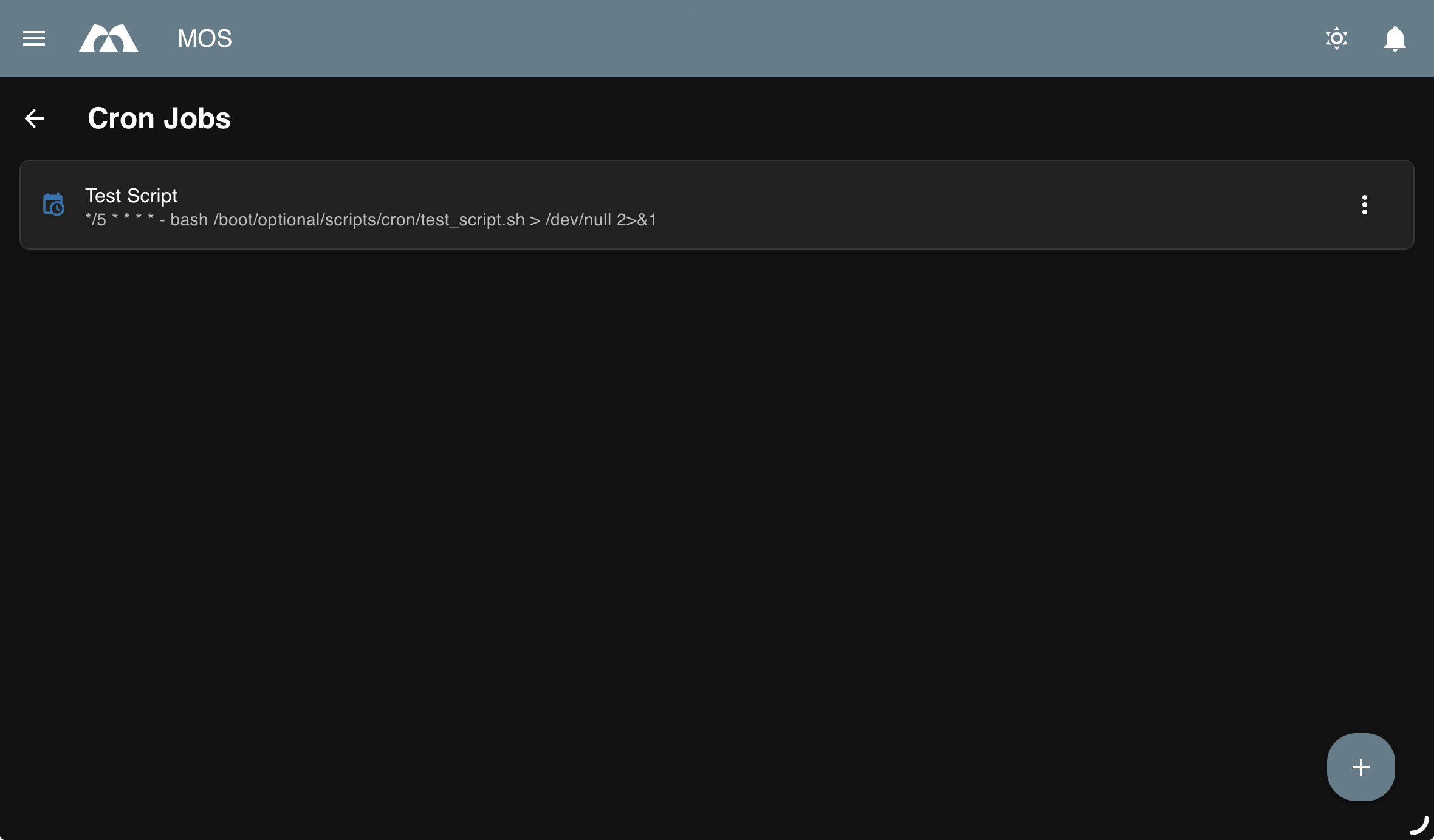
Here you can create new cron jobs and manage existing ones.
Example:
➕ Creating a New Cron Job
To create a new cron job, click the Plus Icon and fill in the required fields.
⚙️ Cron Job Configuration Fields
Name
Defines the name of the cron job.
Use clear and descriptive names Avoid spaces and special characters Reflect the purpose of the job
Examples:
daily_backuplog_cleanupupdate_checkmedia_rescan
Schedule
Defines when and how often the cron job is executed.
MOS provides an intuitive visual scheduler that makes creating cron expressions easy — no need to memorize cron syntax.
Schedule Dialog:
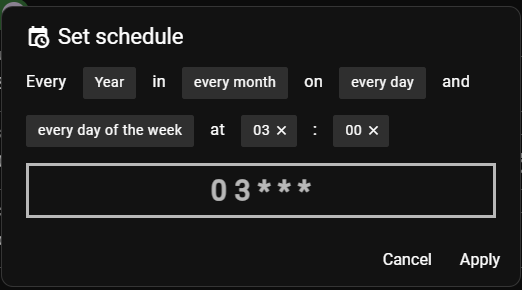
The visual scheduler allows you to configure:
- Period — Select from preset intervals (Year, Month, Week, Day, Hour, Minute)
- Month — Choose specific months or "every month"
- Day — Select specific days or "every day"
- Weekday — Choose specific weekdays or "every day of the week"
- Time — Set exact hour and minute
The configured schedule is automatically converted to standard cron syntax and displayed in real-time at the bottom of the dialog.
Examples:
- Every day at 02:00 →
0 2 * * * - Every 5 minutes →
*/5 * * * * - Every Sunday at midnight →
0 0 * * 0 - Every month on the 1st at 03:00 →
0 3 1 * *
Use fixed schedules for system tasks to avoid unnecessary load.
Command
Defines a single command that will be executed.
- Use the Command field only for single commands
- For scripts or multi-step operations, leave this field empty and use the Script field instead
- If both fields are provided, the command takes precedence
- Commands are executed with system privileges
- Absolute paths are recommended
Example:
/usr/bin/nvidia-persistenced --verbose
Examples:
/usr/bin/nvidia-persistenced --verbose/usr/sbin/zpool scrub tank/usr/bin/find /var/log -type f -mtime +7 -delete
Script
Allows you to select or define a script to be executed instead of a single command.
Use cases:
- Complex logic
- Multi-step operations
- Reusable automation tasks
- Scripts must be executable
- Ensure proper shebang (
#!/bin/sh,#!/bin/bash, etc.)
📋 Managing Existing Cron Jobs
All created cron jobs are listed in the overview table.
For each cron job, the following actions are available:
Start
Enables the cron job.
- The job will run according to its schedule
- Recommended after creation and testing
Stop
Disables the cron job without deleting it.
Use cases:
- Temporary deactivation
- Troubleshooting
- Maintenance windows
Edit
Allows you to modify:
- Enabled / Disabled state
- Name
- Schedule
- Command
Changes take effect immediately after saving.
Change Script
Updates the script path associated with the cron job.
Important:
- The script itself is not edited here
- Only the filesystem path to the script is changed
- Script content must be modified externally (e.g. via shell, editor, or file manager)
Use cases:
- Switching to a new or updated script version
- Replacing a script without recreating the cron job
- Pointing the job to a different script location
Note: Ensure the target script exists and is executable.
Delete
Permanently removes the cron job.
This action cannot be undone.
📚 Best Practices
- Test commands and scripts manually before scheduling
- Avoid overly frequent schedules unless required
- Log output for debugging and auditing
- Disable unused cron jobs instead of deleting them
📝 Logging and Output Handling
By default, cron job output can be suppressed or discarded.
Optionally, you can redirect stdout and stderr to a dedicated log file by defining it directly in the Command field.
Benefits:
- Easier debugging
- Better auditing and traceability
- Persistent access to execution results
Example:
bash /boot/optional/scripts/cron/test_script.sh >> /var/log/cron/test_script.log 2>&1
- Ensure the log directory exists
- Verify proper file permissions
- Consider log rotation for frequently running jobs
✅ Summary
Cron Jobs provide a powerful and flexible way to automate system tasks.
Key points:
- Create scheduled tasks using commands or scripts
- Easily start, stop, edit, or delete jobs
- Use clear naming and predictable schedules
- Essential for maintenance, backups, and automation
Proper use of cron jobs ensures a reliable and self-maintaining system.
Parts of this documentation were created with the assistance of AI tools. All AI-generated content has undergone review, but it may still contain inaccuracies, omissions, or outdated information.